

Part 1 put the Dynamics 365 Contact Center widget inside ServiceNow using OpenFrame. This follow-up adds ServiceNow page and incident context, connects the ServiceNow knowledge base, and configures click-to-dial from Account and Contact records.
The scripts in this walkthrough follow Microsoft’s ServiceNow Configuration Guide.
Watch the demo
Connect the ServiceNow knowledge base
Install the ServiceNow Knowledge API plugin so the embedded widget can use articles from the ServiceNow knowledge base. The Customer Service plugin is optional. It adds records such as Accounts, Contacts, and Cases. It may be useful when the workflow uses cases or synchronizes those records with Dataverse; the demo notes that an incident-based workflow may not need it.
After installing Knowledge API, connect ServiceNow to the widget with the native ServiceNow connection. A Power Platform connection reference may be needed. The video checks the connection before using it in the demo.
Pass page context with a UI Script
Create the OpenFrame desktop UI Script in the Global scope. The demo follows the Microsoft guide’s API name and script, uses the Desktop UI type, and enables the Global option. This script sends page-level information, including the current URL, to the embedded widget.
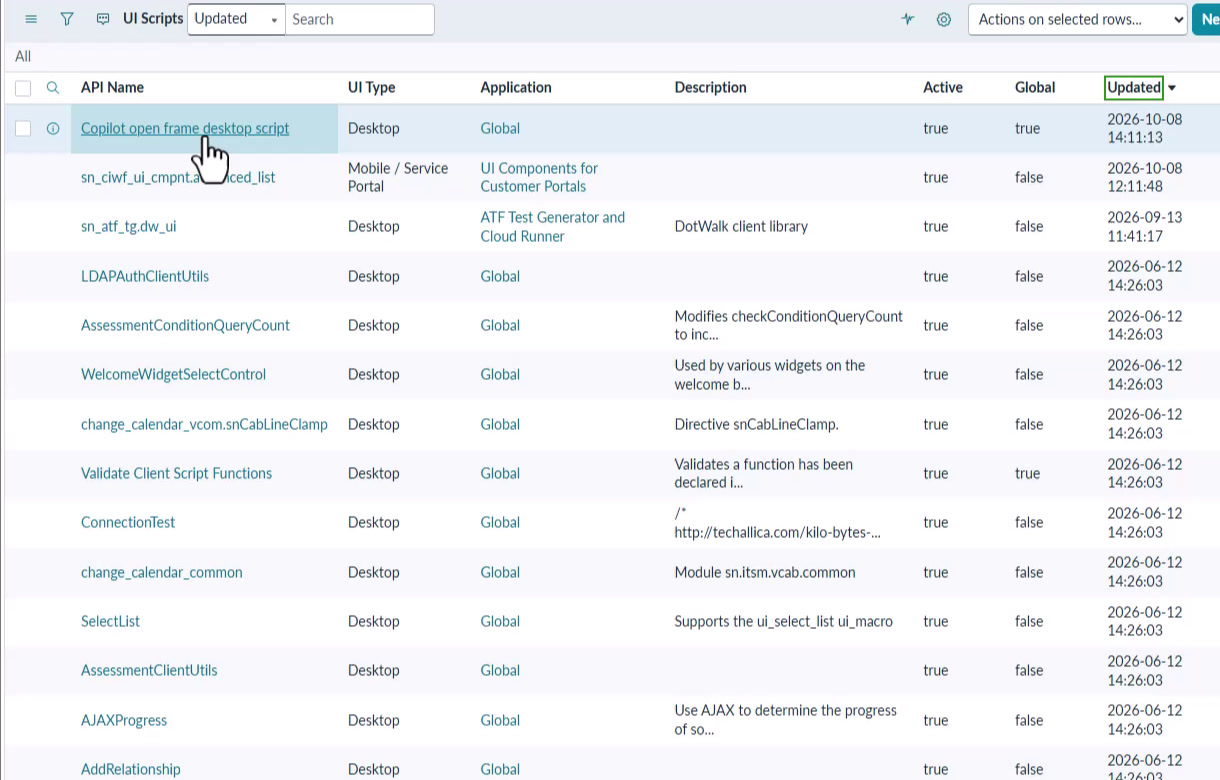
*The OpenFrame desktop UI Script is listed as active in the Global application scope.*
Pass incident context with a Client Script
The Client Script handles record context separately from the UI Script. In the demo, it targets the Incident table, uses the Desktop UI type, and runs onLoad. It sends the current record ID and object type to the widget.
The video first creates a Global client script, then corrects the table selection to Incident. If agents work with Cases, the same pattern can be configured for that table. Microsoft’s guide also documents repeating the client-script setup for Email and sn_customerservice_case.
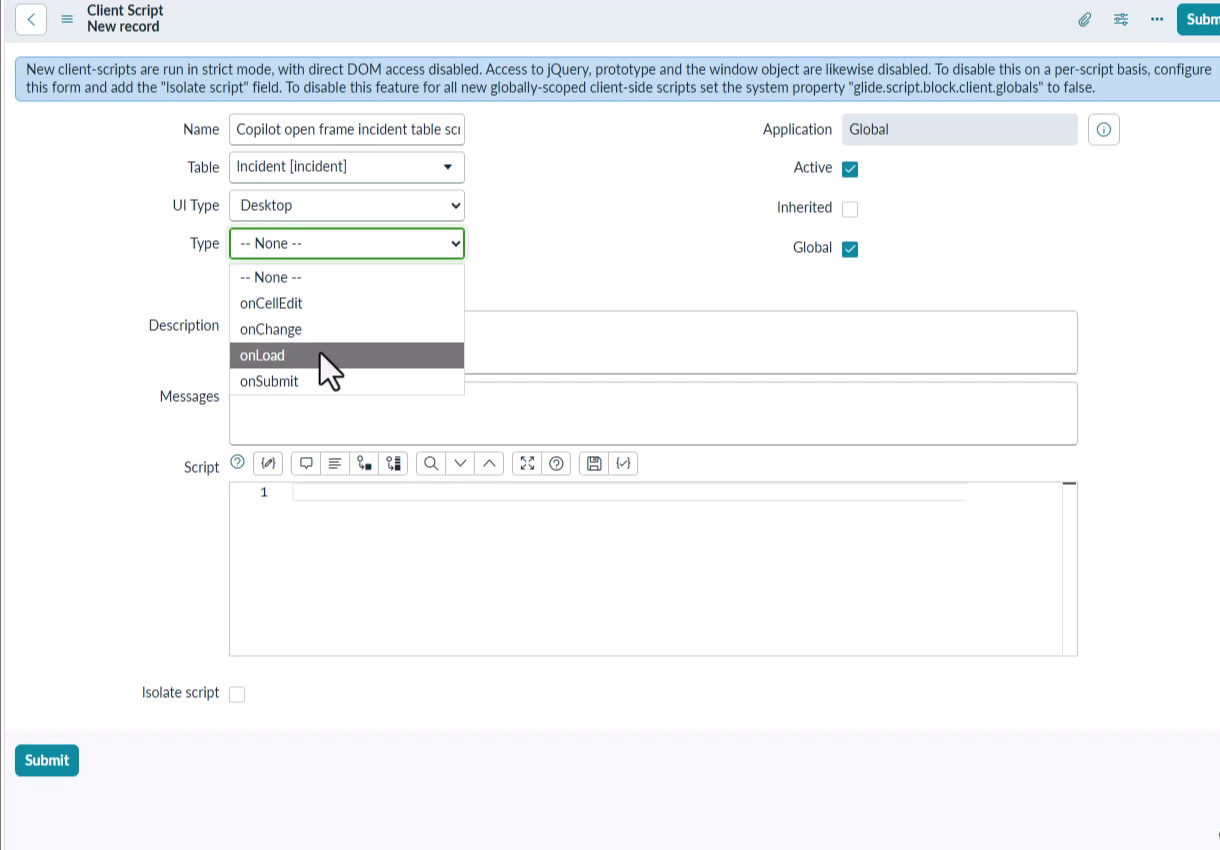
*The demo configures the table Client Script for Incident and onLoad.*
Ask Copilot about the incident
With the connection and scripts in place, the widget receives the page and record context. In the walkthrough, the incident’s short description and description provide the basis for a suggested question. Copilot answers from a ServiceNow knowledge article and cites the source for the agent to review.
The agent can copy or edit the response, translate it, or ask a follow-up question. The demo shows the agent reviewing the answer; it does not send a response automatically.
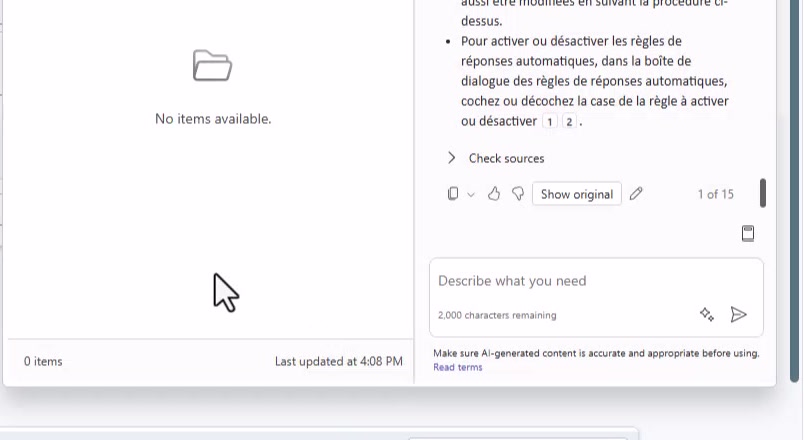
*The agent can inspect the answer’s source before using it.*
Add click-to-dial to Account and Contact records
For outbound calls, create a ServiceNow UI Action named Call on the Contact table. Set it as active, enable Client and Form button, and set the OnClick handler to the function from Microsoft’s guide. Repeat the action for Account.
When an agent selects the button on a record with a phone number, the script passes that number and record context to the outbound Contact Center dialer.
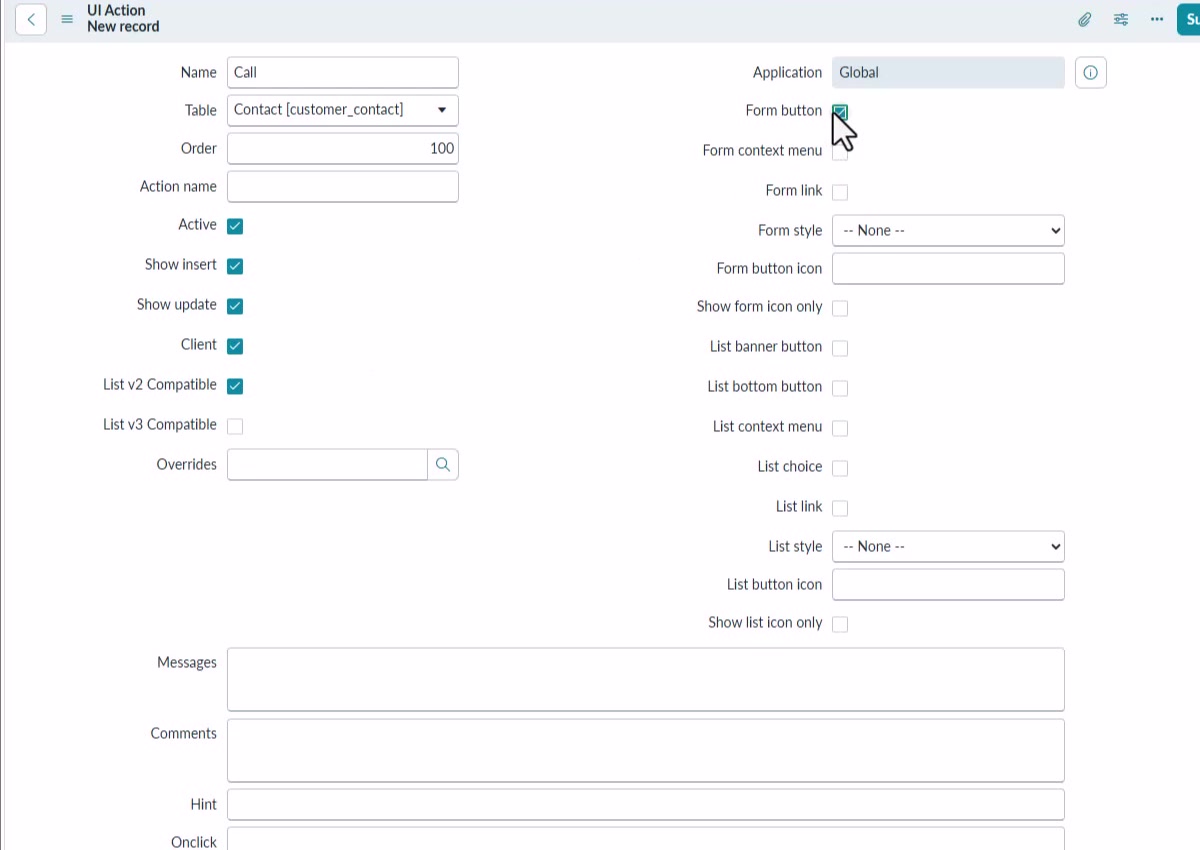
*The Call UI Action adds a form button to Contact records. Configure the same action for Account records.*
Treat the scripts as starting points
The video describes these scripts as starting points that can be adapted with additional attributes. Review which page and record details your agents need before applying them to other tables.