

Keep the conversation in ServiceNow
The Dynamics 365 Contact Center embedded conversation widget lets representatives handle chat and voice conversations from a non-Microsoft CRM or another web application that supports HTML and JavaScript. This walkthrough shows the ServiceNow setup using OpenFrame, then follows a customer chat into the embedded widget.
Microsoft lists four prerequisites: Contact Center system requirements, omnichannel capabilities enabled in the environment, a ServiceNow provisioning user with System Administrator permissions, and the OpenFrame plugin. You also need the widget URL from the Copilot Service admin center. Microsoft’s setup guide covers the same process.
Watch the demo
Install OpenFrame
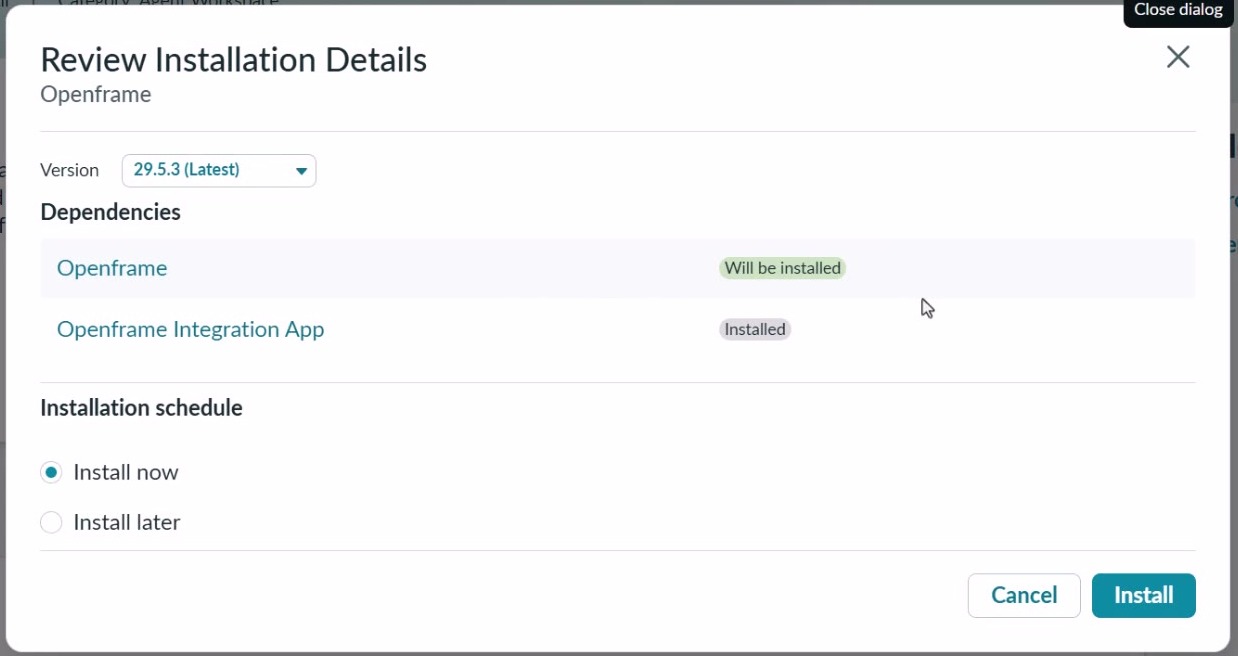
In ServiceNow, install the OpenFrame plugin. The demo’s installation dialog lists the OpenFrame Integration App as an installed dependency.
Create the OpenFrame configuration
Go to All > OpenFrame > Configurations and select New. The demo uses these values:
- Name: Dynamics 365 Contact Center
- Title: Dynamics 365 Contact Center
- Width: 400
- Height: 700
- Active: selected
The URL field is locked while you create the record. Save the configuration, reopen it, then unlock the URL field to enter the widget URL.

Add the Contact Center widget URL
In the Copilot Service admin center, open your default contact center and select the Conversation widget tab. Under Integration into third-party systems, copy the URL. Return to the OpenFrame configuration, unlock the URL field, paste the value, and save.
The URL includes your Dynamics 365 environment, so treat it as environment-specific. The screenshot below hides that value.

Sign in and load the widget
Refresh ServiceNow after saving. A phone icon appears in the top bar; selecting it opens the Contact Center widget and starts single sign-on. In the recording, the browser blocks the sign-in popup on the first attempt. Allow popups for the ServiceNow site and refresh again.
You need a Dynamics 365 Contact Center license to use the widget. In the demo, the widget can be minimized and moved within ServiceNow.
Take a customer chat
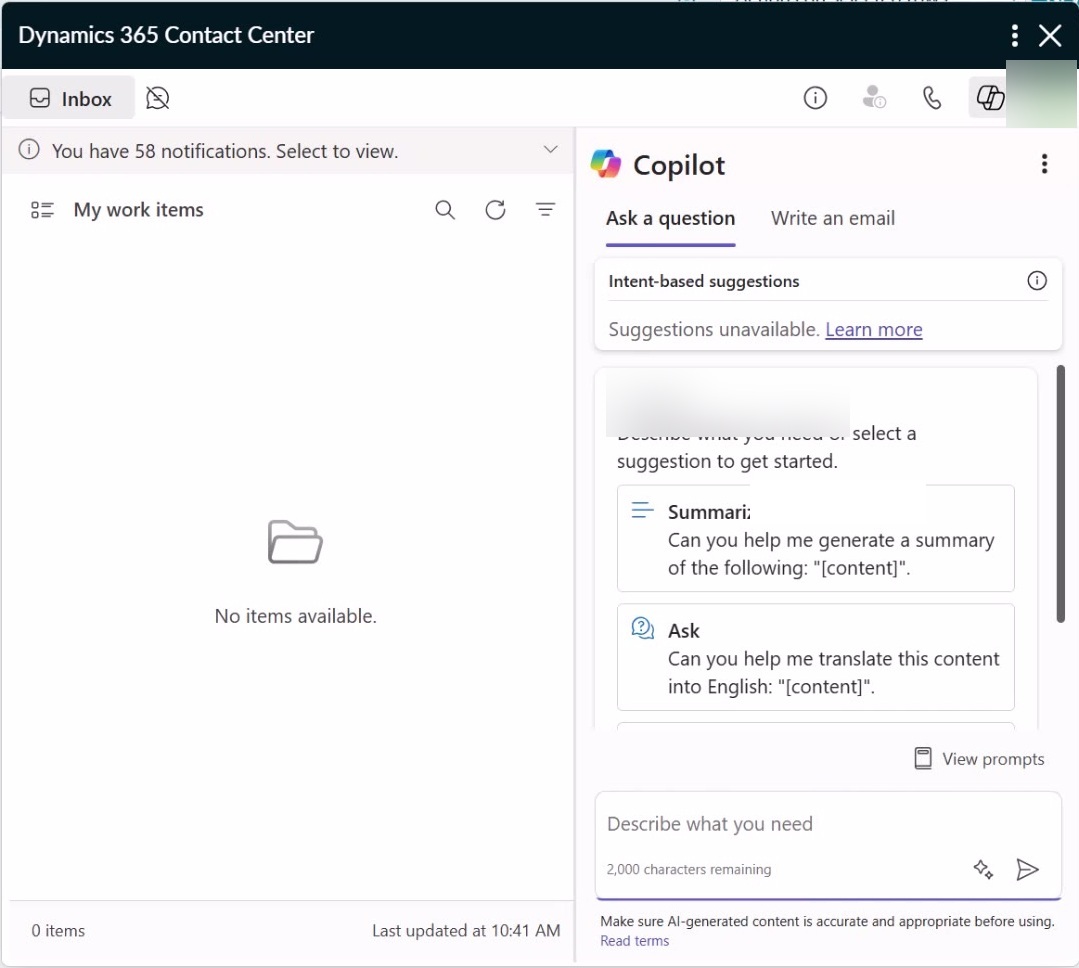
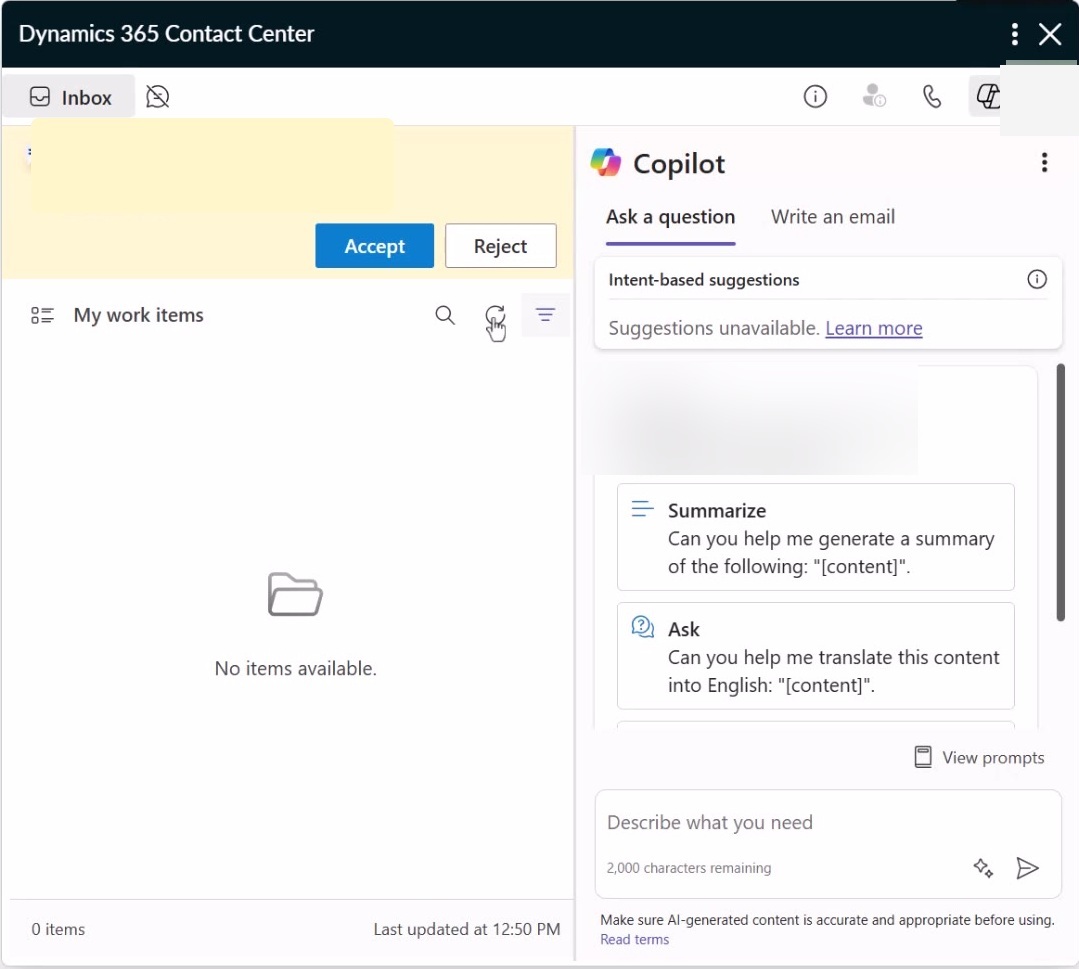
The demo ends with a chat request arriving inside the widget. The representative accepts it in ServiceNow and continues the conversation there. When an agent receives a new chat or call, the minimized widget can open again. The Contact Center conversation panel sits beside the Copilot pane, while the representative can keep working in ServiceNow.
Before rollout, test the flow from a staging page. Confirm representatives have the required Contact Center access, allow the ServiceNow popup used for sign-in, and verify that an incoming request opens in the embedded panel.
More information
- Set up the embedded experience in ServiceNow for Dynamics 365 Contact Center
- Dynamics 365 Contact Center system requirements
[…] Part 1 put the Dynamics 365 Contact Center widget inside ServiceNow using OpenFrame. This follow-up adds ServiceNow page and incident context, connects the ServiceNow knowledge base, and configures click-to-dial from Account and Contact records. […]