

A guided starting point for a Salesforce migration
Moving from Salesforce to Dynamics 365 involves more than copying accounts and contacts. The migration team needs to understand the existing org, identify customizations, map users and ownership, decide what belongs in the target schema, and plan for the work that will not convert automatically.
Microsoft’s new Dynamics 365 Activate application is designed to help with that early assessment and migration work. It is a web-based application for Salesforce migrations to Dynamics 365 Sales and Dynamics 365 Customer Service. The current release is a public preview, so Microsoft warns that it is subject to change and isn’t intended for production use.
This post walks through the main areas shown in the current preview experience and the migration decisions that sit behind them.
Start with discovery
The Discovery page organizes the Salesforce assessment into several areas, including objects and relationships, flows and automation, Apex code, business processes, Lightning pages, ISV packages, integrations, localization and currency, and licenses and users.
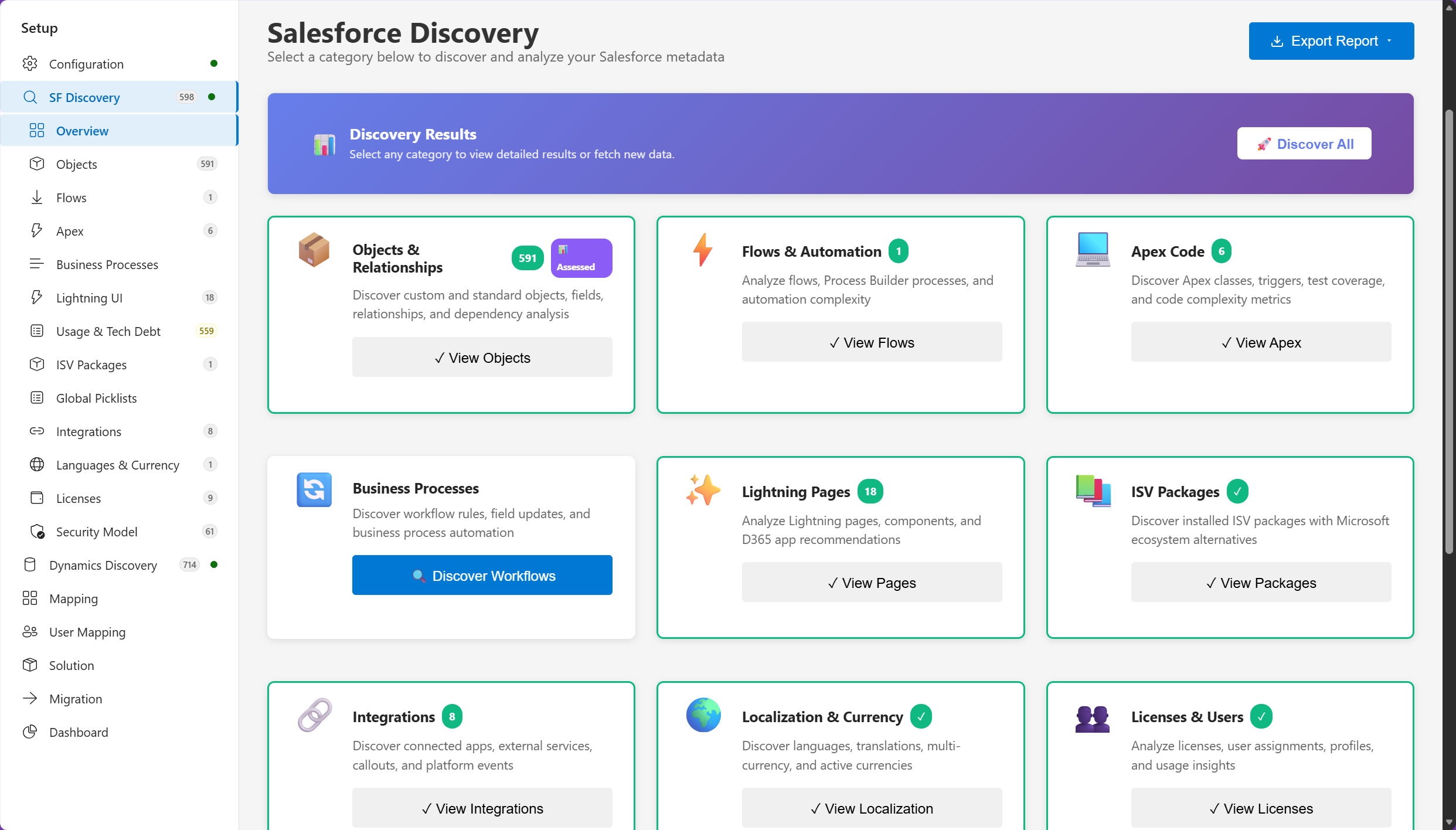
The Discovery page groups the Salesforce org into the areas a migration team needs to assess before designing the target environment.
This is useful because the migration conversation starts with the full org rather than a short list of tables. A Salesforce implementation can contain years of custom fields, inactive automation, managed packages, external integrations, and page customizations that are easy to miss when the project begins with a data export.
Microsoft’s documentation says that discovery connects to Salesforce in read-only mode and scans the metadata, configuration, and data visible to the configured integration user. The integration user’s permissions matter, so the assessment should be run with an account that can see the parts of the org included in the migration scope.
Review the assessment before deciding what to migrate
After discovery, Dynamics 365 Activate presents a results view with object counts, complexity information, and assessment status. The results help the team find objects that need attention and identify where the migration will require design work.
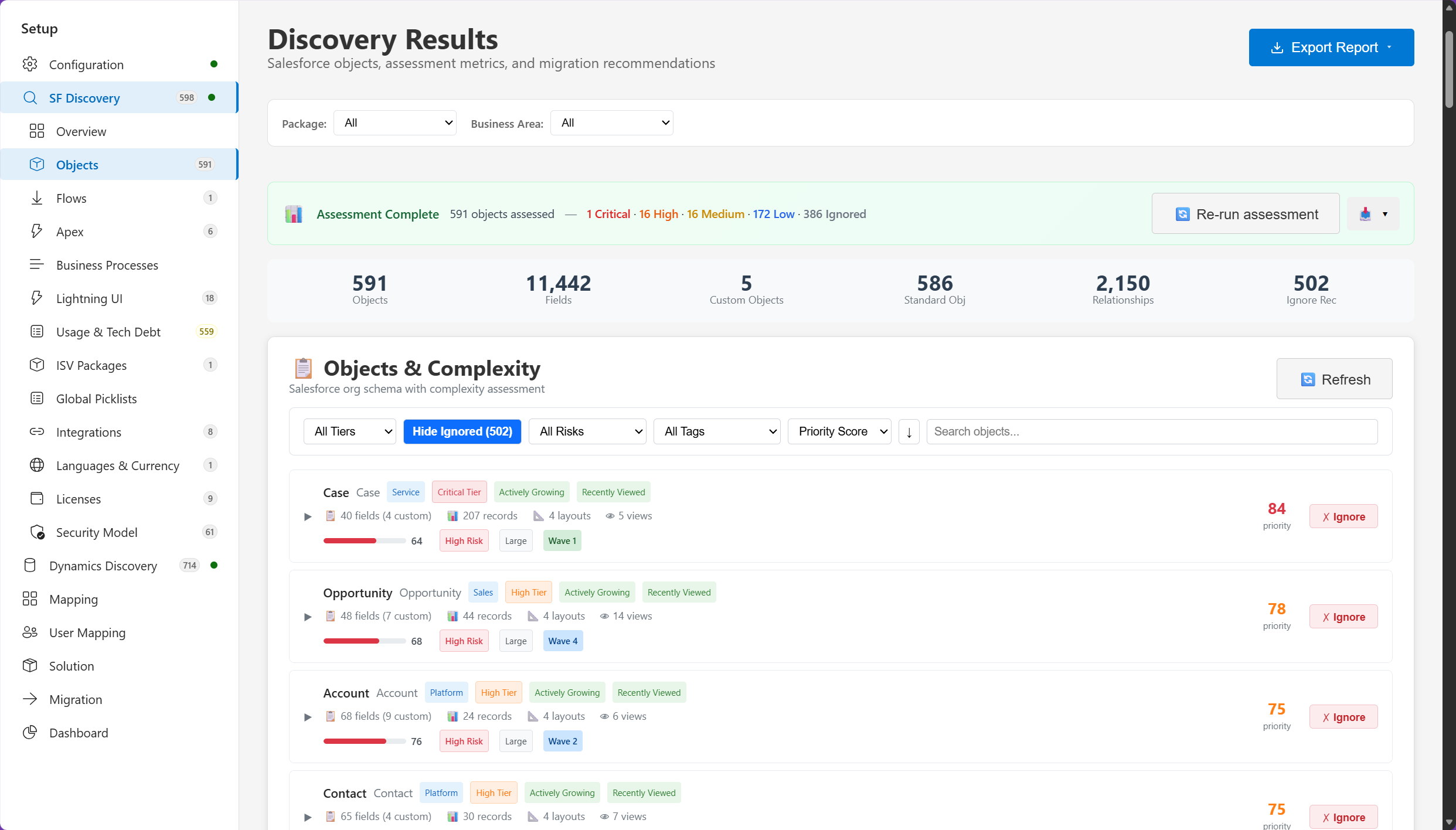
The assessment results provide a starting point for reviewing object volume, complexity, and migration concerns.
The application can produce a migration readiness report in PDF, Word, or JSON. That report can give project stakeholders a shared view of the org before the team commits to a detailed mapping and migration plan.
The assessment also covers technical debt and low-usage areas. That creates an opportunity to decide what should be retired instead of carrying every old object, field, and automation rule into the new system.
Map users, teams, ownership, and security
Data migration is only useful if the records arrive with the right ownership and access model. The User Mapping screen provides a place to compare Salesforce users with Dataverse users and review matched, unmatched, or excluded records.
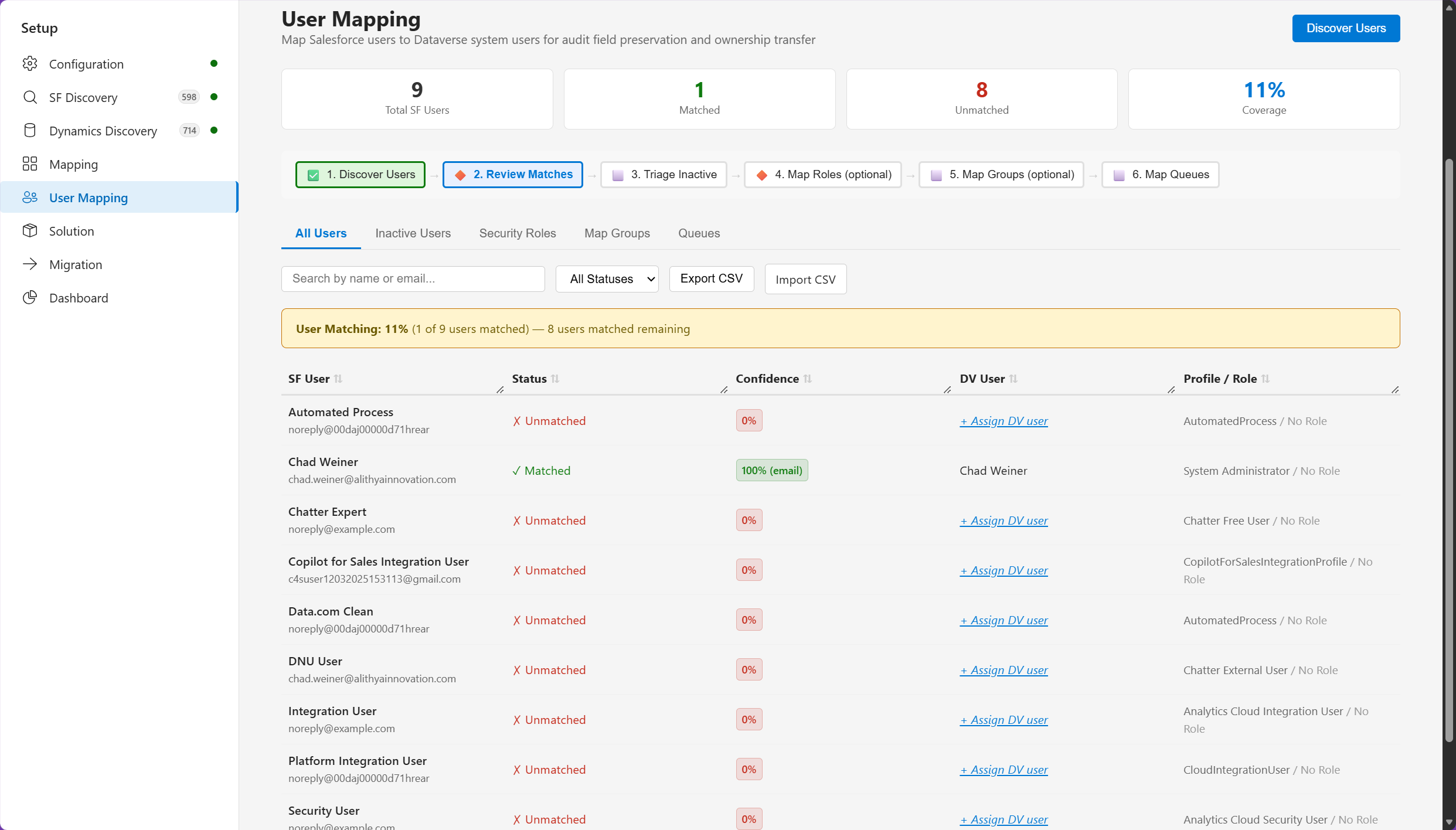
User mapping helps the migration team review matches, unmatched users, ownership, and profile or role information before records move.
Microsoft notes that Salesforce and Dataverse use different security and ownership models. The tool can help map profiles and permission sets to Dynamics 365 security roles, map role hierarchy information to business units, create or link teams and queues, transfer supported record ownership, and preserve supported audit information.
This is an area where generated mappings still need human review. An unmatched user, inactive account, or different business-unit design can affect record access after migration even when the record counts look correct.
Generate the target solution
For custom objects and fields, Dynamics 365 Activate can generate a Dynamics 365 solution package. The solution generator shows what will be created, what already exists in Dynamics 365, and what still needs attention.
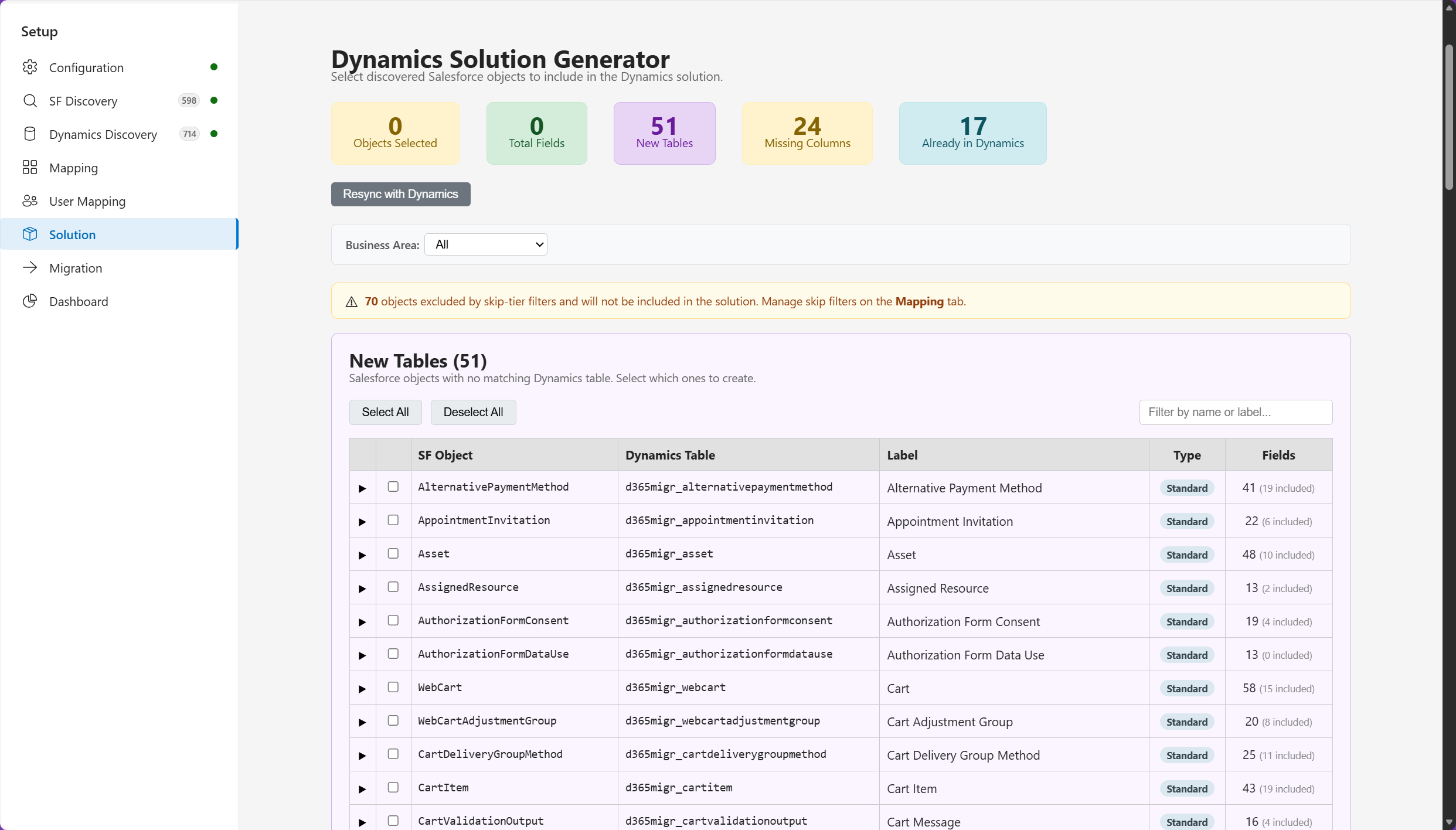
The solution generator separates new tables and fields from items that already exist in the target environment.
The generator is a useful checkpoint between assessment and data movement. It gives the team a chance to review the target schema before records are loaded into it.
The preview can also identify fields that are missing from a target table. The missing-columns view makes those gaps visible at the object and field level.
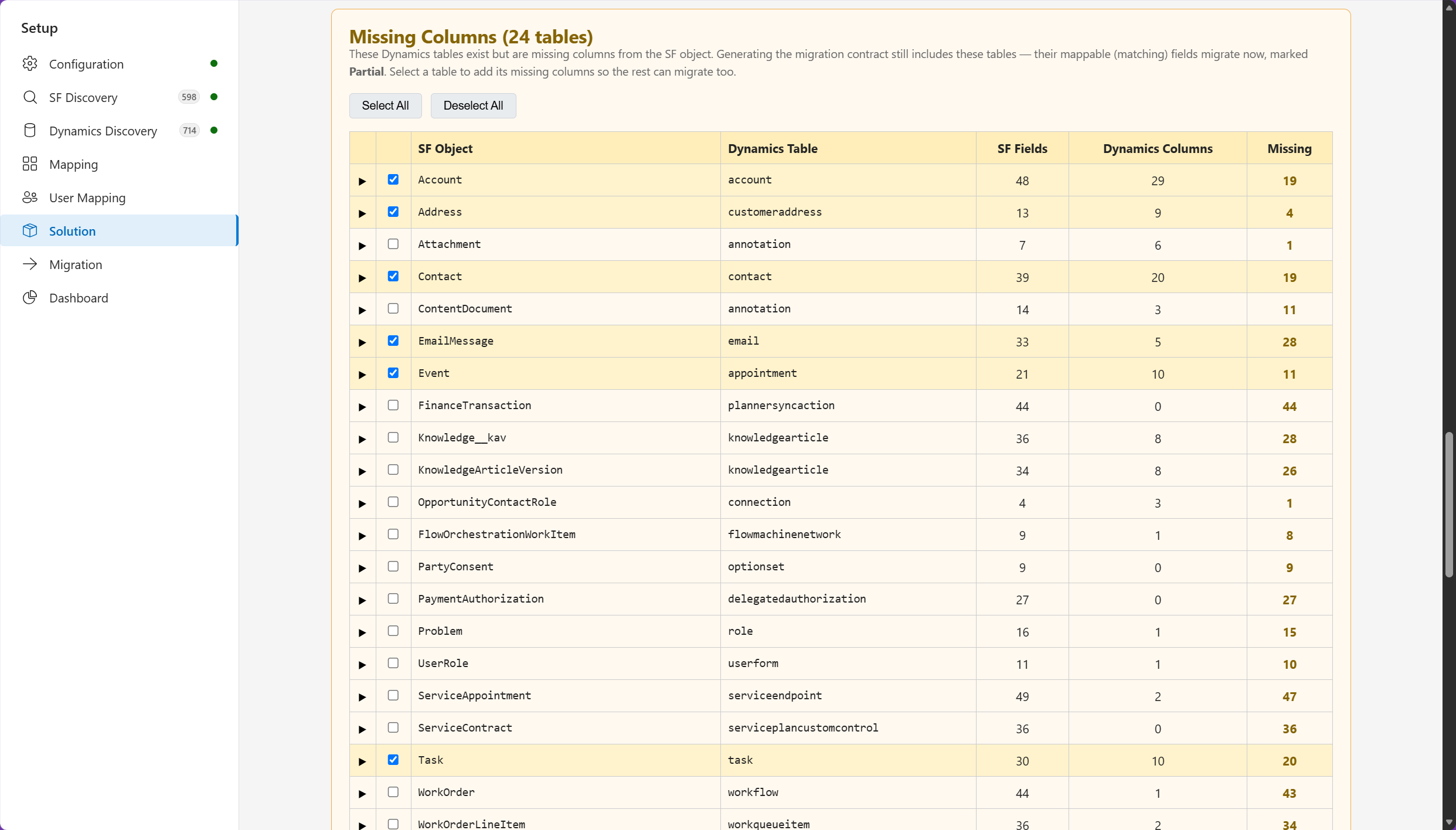
Missing columns show where the target schema still needs to be extended or where a mapping decision is required.
Field types, picklist values, and formatting may change when Salesforce values are transformed to fit the Dataverse schema. Those changes should be reviewed before migration, especially for status fields, dates, currencies, and fields used by automation or reporting.
Separate new schema from existing Dynamics 365 tables
The preview also distinguishes objects that have already been mapped to Dynamics 365. The existing-table view shows the Salesforce object, the Dynamics 365 table, field counts, and the contract status for the mapping.
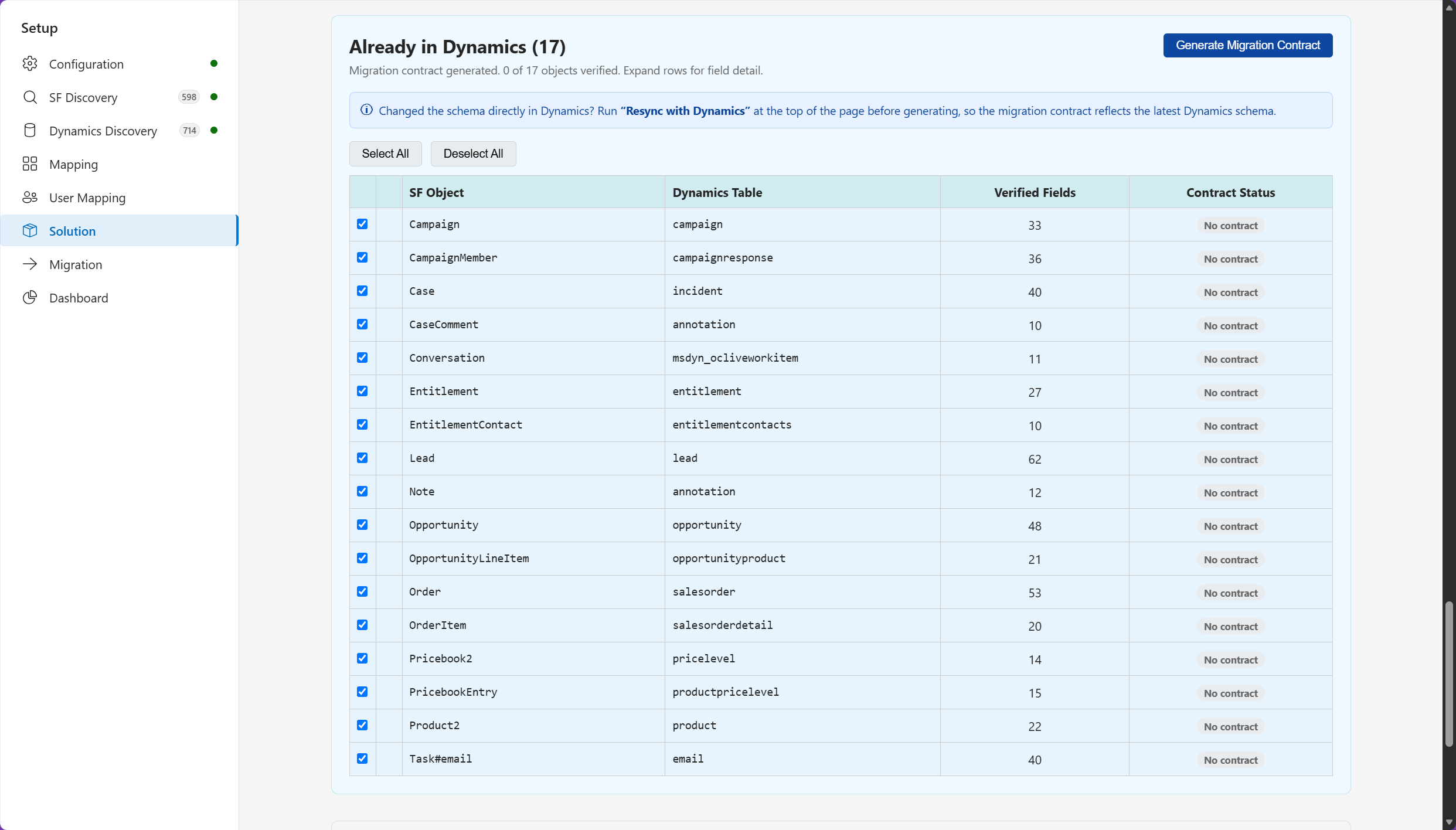
The existing-table view helps the team check which Salesforce objects already have a Dynamics 365 target.
The lower portion of the screen provides controls to generate a solution, download the package, or import it into Dynamics 365. Keeping schema deployment separate from data migration makes the sequence easier to review and test.
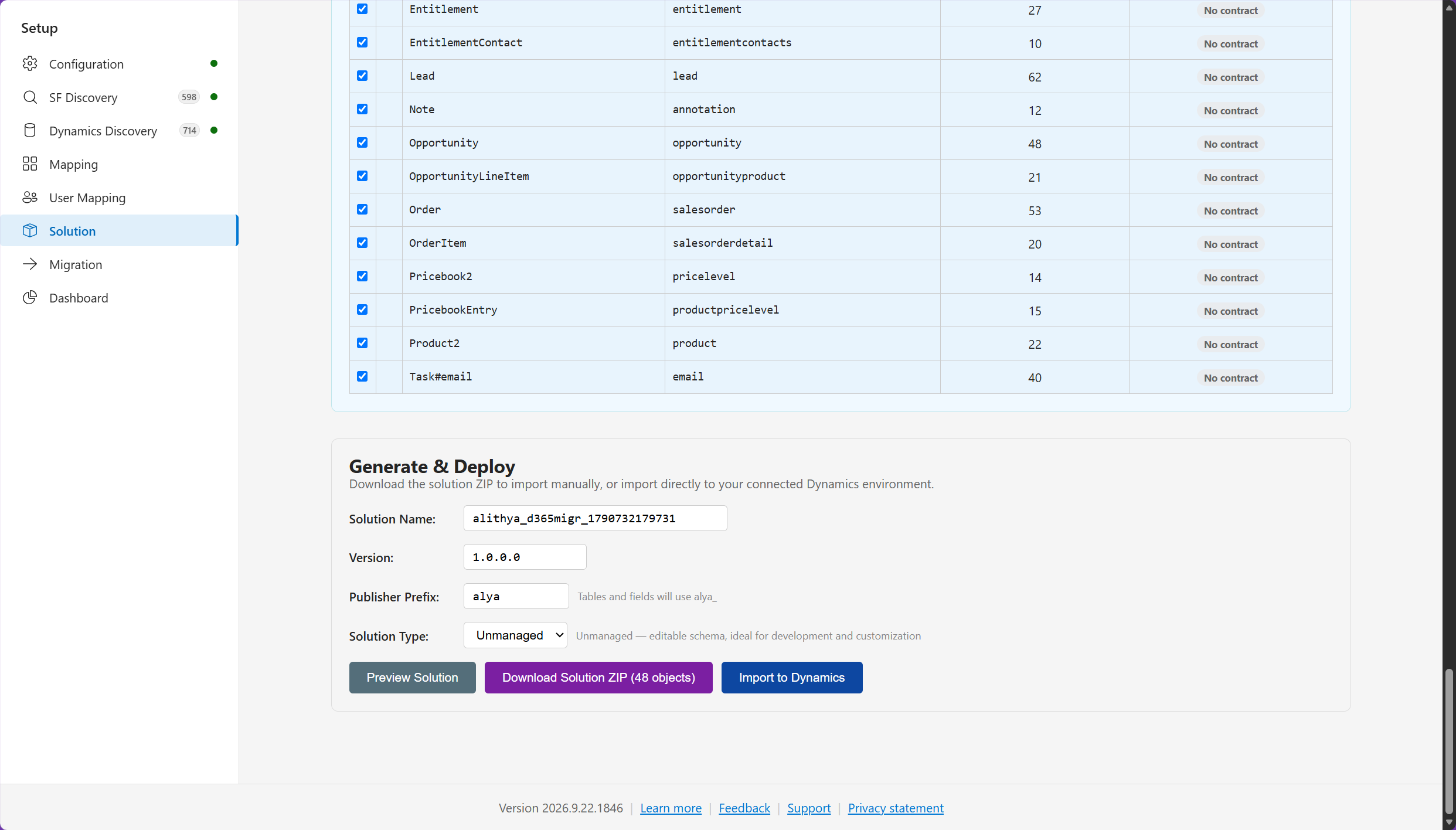
The deployment area provides the next steps for packaging the generated schema and moving it into the target environment.
The final view shows the solution deployment controls and the status of the imported package. This is where the migration team can confirm that the target environment has the schema needed for the data phase.
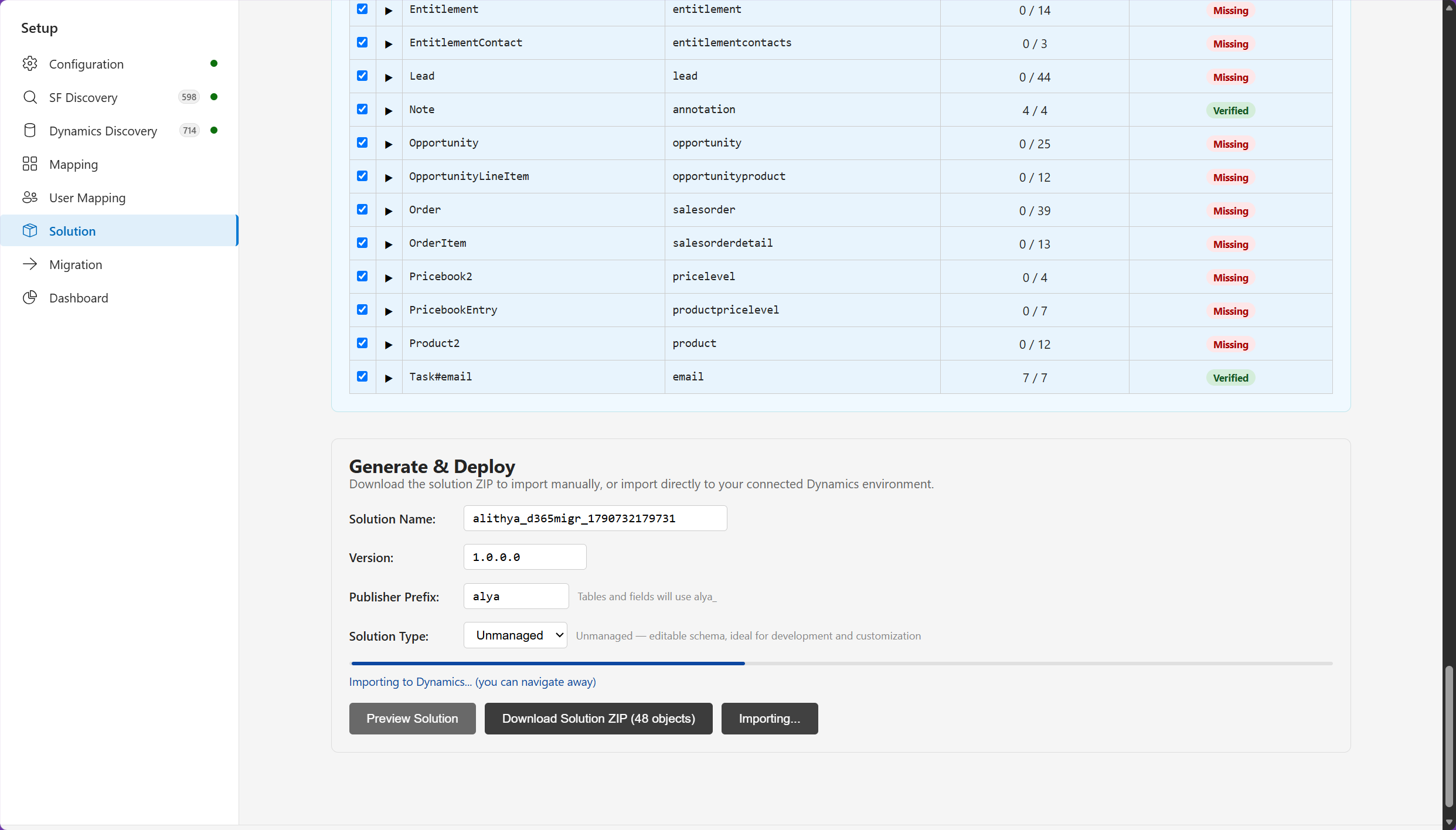
The deployment status provides a checkpoint before the project moves on to data migration.
Move from schema deployment to data migration
Once the target solution has been imported, the project can move into a controlled data run. The Migration screen tracks the run status, objects processed, record counts, failures, and duration.
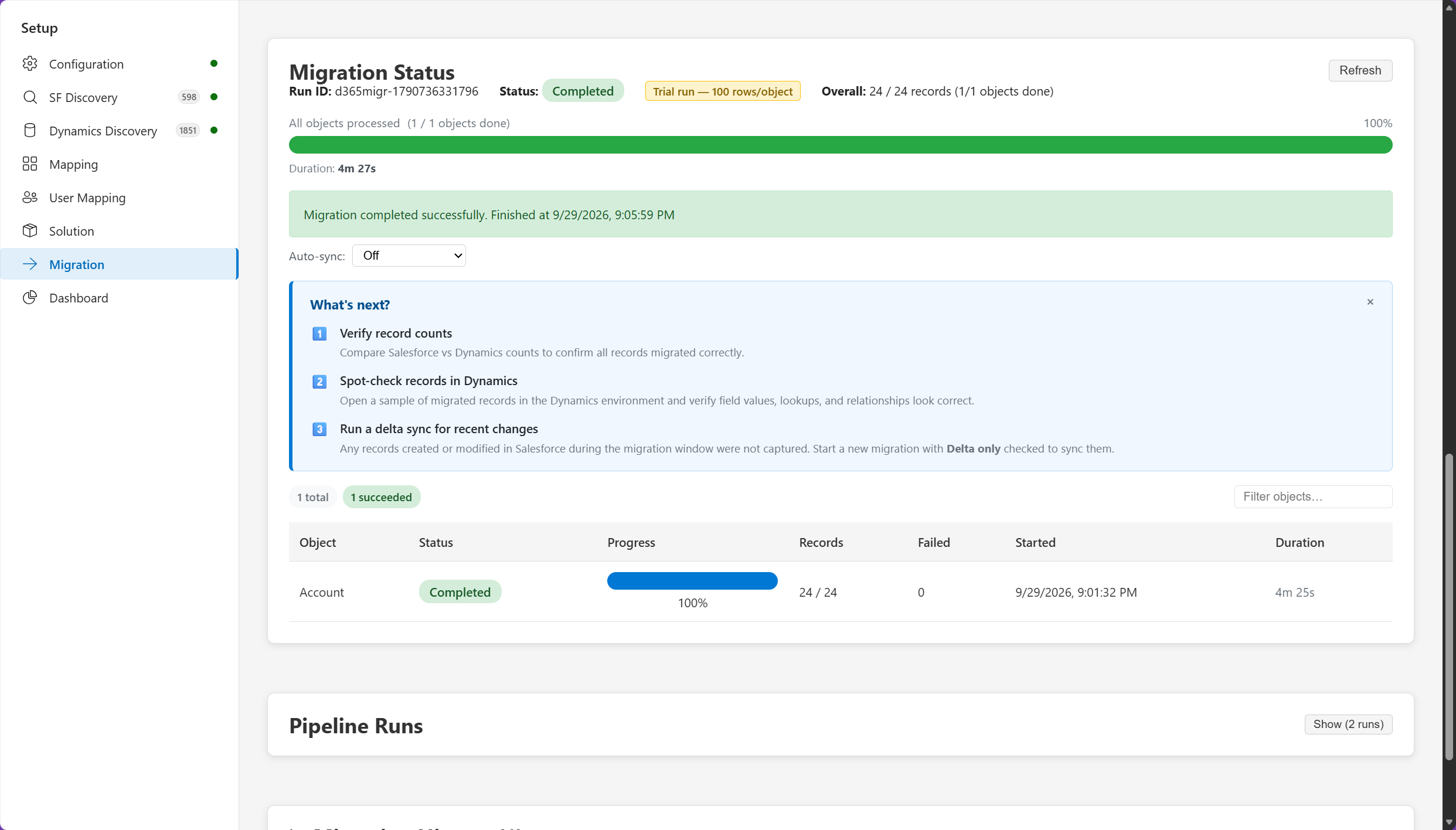
This step connects schema work to validation. A successful run is a checkpoint, not the end of the migration. The team still needs to compare counts, inspect field values and relationships, review ownership and security, and decide how to handle records changed after the initial load.
What the preview does not convert automatically
The biggest planning point is the boundary between assessment and conversion. Dynamics 365 Activate analyzes flows, Process Builder processes, workflow rules, and Apex classes, but Microsoft’s documentation says those automations and code are not automatically converted or migrated by the application.
That analysis can still be valuable. It helps the project team estimate the work involved and decide which processes should be rebuilt with Power Automate, redesigned in Dynamics 365, replaced by standard functionality, or retired.
Binary content has scoped support as well. The preview supports selected Salesforce Files, ContentNotes, classic Attachments, email attachments, and supported record images. It skips files that exceed the target Dataverse upload limit, do not have a supported parent, or belong to an unsupported scenario.
The current documentation also calls out Salesforce API rate limits, unsupported object categories such as Big Objects and External Objects, and possible differences in field types, picklist values, and formatting.
Access and preview considerations
Access requires a Microsoft Entra work account. The work account you are using should match account/tenant the target Dataverse is in. The current setup documentation lists Salesforce as the supported legacy source and Dynamics 365 Sales and Customer Service as the supported targets. It also states that the current access request flow supports the US region.
Because this is a preview, I would use it for discovery, planning, mapping, and controlled test migrations. I would not treat the generated schema or migration results as a replacement for a full solution review, data validation plan, security design, or cutover rehearsal.
A practical migration sequence
The screens suggest a sensible order for a migration project:
- Run discovery with an integration user that can see the intended Salesforce scope.
- Review complexity, usage, automation, packages, integrations, and data volume.
- Decide what should be retired, redesigned, rebuilt, or migrated.
- Map users, ownership, teams, queues, and security roles.
- Map standard and custom objects and resolve missing columns.
- Generate and review the Dynamics 365 solution package.
- Deploy the schema into a test environment.
- Migrate a controlled data set and reconcile source and target counts.
- Validate relationships, ownership, security, files, automation replacements, and reporting.
The tool can organize several of these steps, but the migration decisions still belong to the project team.
Microsoft documentation
- Salesforce to Dynamics 365 migration overview
- Access and set up Dynamics 365 Activate
- Dynamics 365 Activate
The screenshots in this post were captured from the public preview experience. Preview functionality, availability, and supported scenarios may change.