

Sales context rarely sits in one place. The account and pipeline are in CRM. Meeting history is in the calendar. Customer documents, campaign reporting, and follow-up emails are spread across Microsoft 365.
That creates a familiar QBR-prep routine: open several tabs, pull together an account summary, chase down supporting material, and decide which numbers still need to be checked.
In this demo, I connected Salesforce CRM data to Microsoft 365 Copilot and used Work IQ context to prepare a QBR brief for a sample account. The brief draws on the account record, open opportunities, meeting context, emails, and SharePoint content already available to the user.
Watch the demo
This video walks through the Salesforce connector, Work IQ context, and the QBR preparation brief created in Microsoft 365 Copilot.
Bring Salesforce records into Microsoft 365 Copilot
The Salesforce CRM connector is available from the Microsoft 365 admin center under Copilot > Connectors. Microsoft documents that the connector can index Salesforce records such as accounts, contacts, leads, opportunities, and cases, making them discoverable through Microsoft 365 Copilot and Microsoft Search. Deploy the Salesforce CRM connector
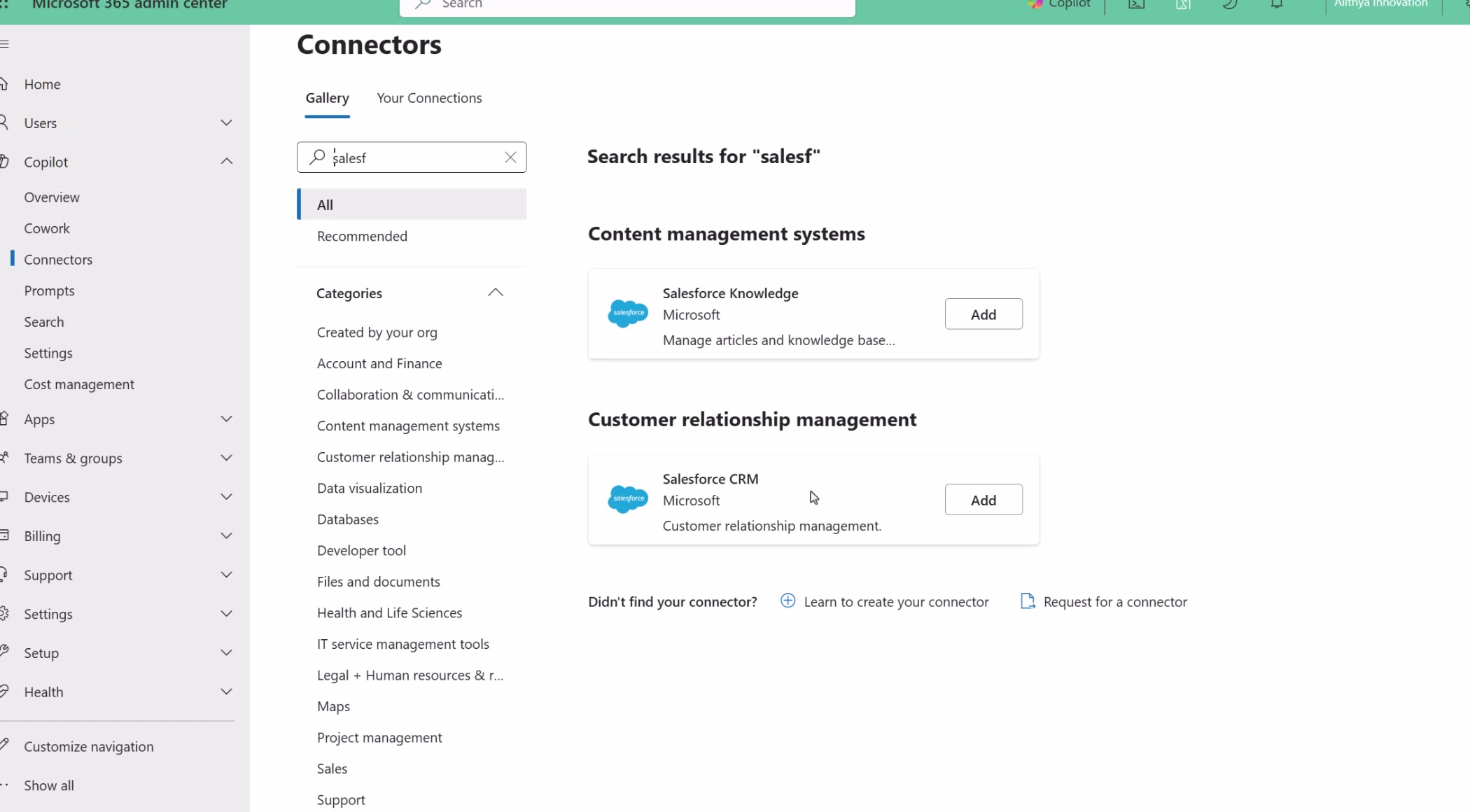
Choose the connector scope first
Microsoft’s Salesforce connector includes eight out-of-box tables: Account, Contact, Lead, Opportunity, Case, Event, Task, and Campaign. That is enough when the fields on those tables contain the CRM context Copilot needs.
Create your own custom connector when the scenario needs additional Salesforce tables, custom tables, extra fields, or custom fields on the eight included tables. The custom connector is the route for bringing that broader CRM data scope into the Copilot experience.
The connector configuration still matters. Microsoft calls out OAuth setup, required object permissions, identity mapping, and field-level security as part of the deployment work. Those controls determine which Salesforce content is indexed and who can access it. Set up Salesforce service for connector ingestion
Ask for a full QBR brief
With Salesforce available to Copilot, I enabled Work IQ in Microsoft 365 Copilot and asked it to prepare for a quarterly business review. The prompt narrowed the task to the sample account and asked Copilot to consider calendar appointments, recent email, SharePoint documents, campaign reporting, and Salesforce information.
The response pulled together several parts of the account story:
- An executive readout and account snapshot
- Meeting participants, roles, and stated priorities
- Salesforce opportunity and pipeline context
- Campaign information found in SharePoint
- Risks, open issues, talking points, and next actions
- A starting outline for a customer-facing PowerPoint
Copilot also cited the sources it used and linked back to the Salesforce account. That link between the brief and the underlying record is important. A QBR summary is more useful when the seller can quickly check where a claim came from.
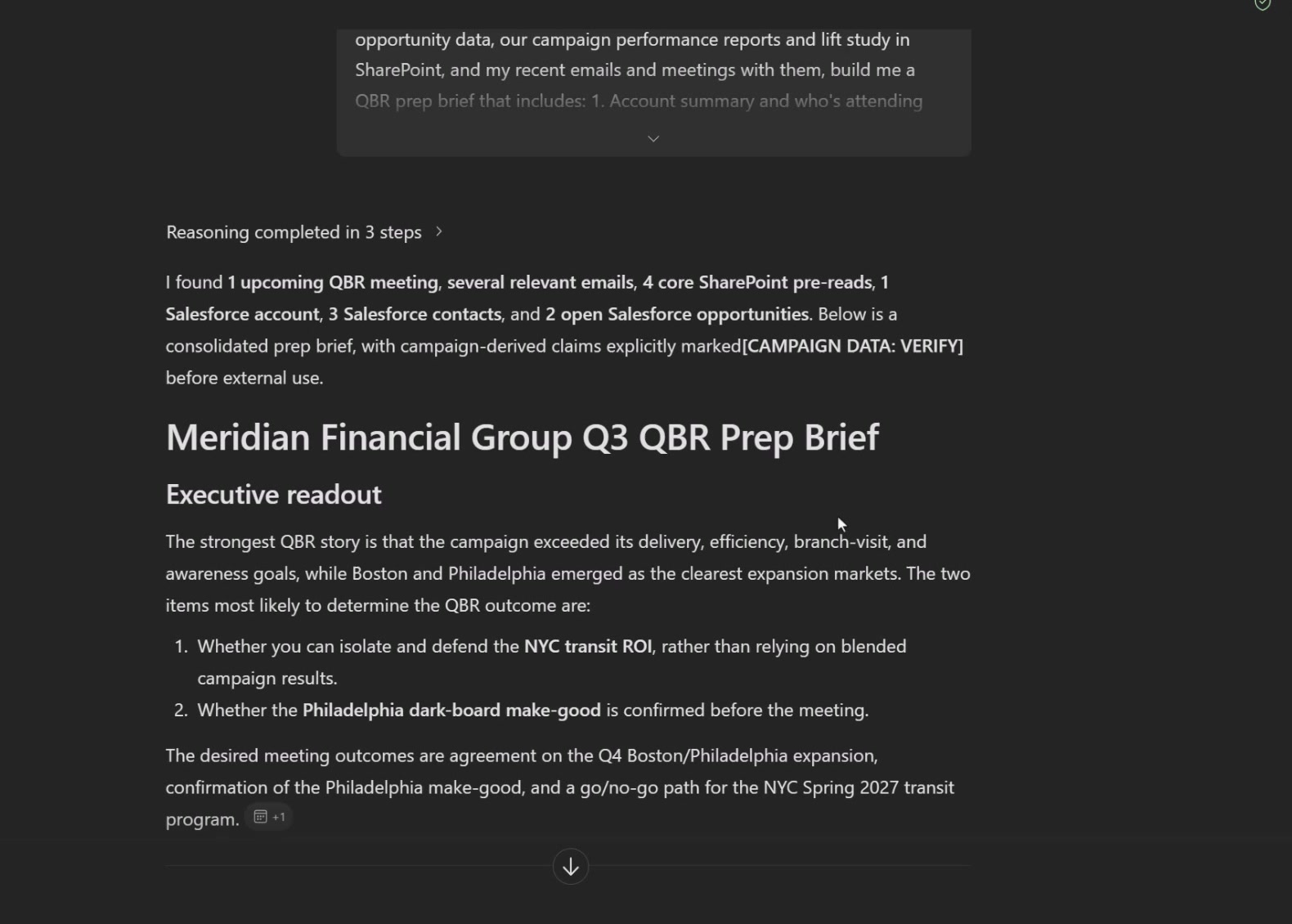
Verification cues are part of the result
The response in the demo explicitly marked campaign-derived claims for verification before external use. That is a useful pattern for sales preparation. A polished narrative should not hide uncertainty when a source does not answer a specific question.
The output can help a seller assemble the story, identify the gaps, and prepare follow-up questions. The final customer conversation still needs someone who understands the account and can validate the details.
What to validate before rolling this out
Start with the connector’s data scope and permissions. Confirm that identity mapping and field-level security match the access model you expect. Then test a handful of account-preparation prompts against known records and documents.
Also check the source material itself. Stale opportunity stages, inconsistent account names, and incomplete SharePoint documents will show up in the resulting brief. Copilot can shorten the research step; sales teams still need accurate CRM records and customer context.
For sales teams that already work in both Salesforce and Microsoft 365, this pattern turns QBR preparation into a sourced research task inside the same Copilot experience. Salesforce supplies CRM context. Work IQ brings together the work signals around that account. The seller gets a starting brief with clear places to validate before it becomes an external document.