

Keep customer conversations connected to the sales record
Sales conversations often move between phone calls, text messages, notes, and follow-up tasks. When those activities live in separate tools, sellers have to reconstruct the history before the next customer interaction.
In this D365 Videos demo, I walk through Microsoft Teams calling and SMS inside Dynamics 365 Sales. The workflow starts from a contact record in Sales Hub and covers outbound calling, recording and transcription, call summaries, text messages, replies, and the administrative settings behind both channels.
The demo uses sample data. The specific licensing, security roles, phone system, provider, and regional availability need to be checked for each environment.
Call customers from Dynamics 365 Sales
With the Teams dialer enabled, a seller can call a customer from a Dynamics 365 Sales record or open the dialer and search for the contact. The call pane stays inside the sales experience, so the seller can keep the customer record and related context available during the conversation.
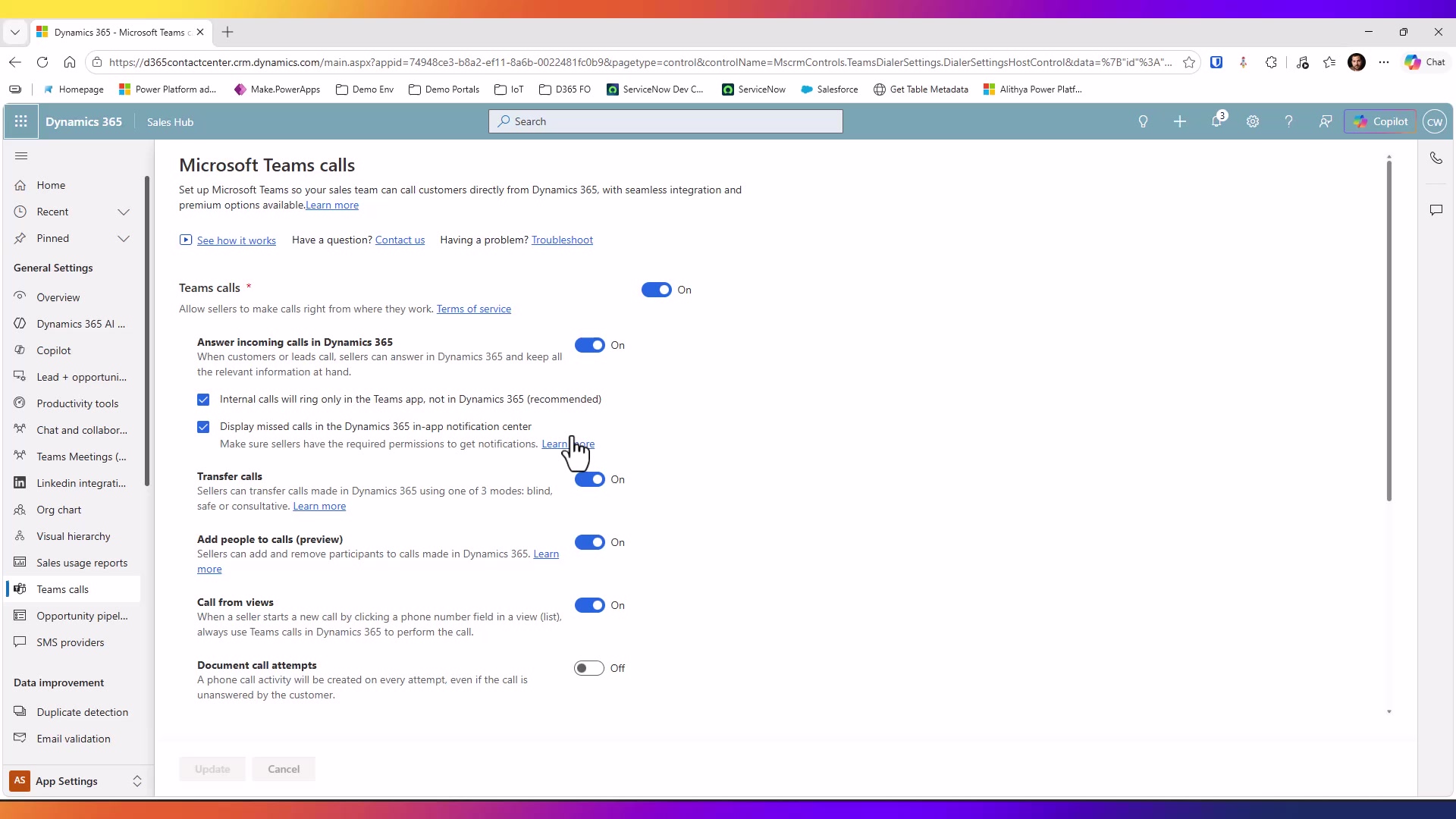
The call controls shown in the demo include mute, hold, transfer, recording, transcription, and notes. Recording and transcription can be configured for automatic or manual use, depending on the organization’s policy.
After the call ends, Dynamics 365 creates a phone call activity. That activity can be reviewed from the record timeline and opened for additional call information.
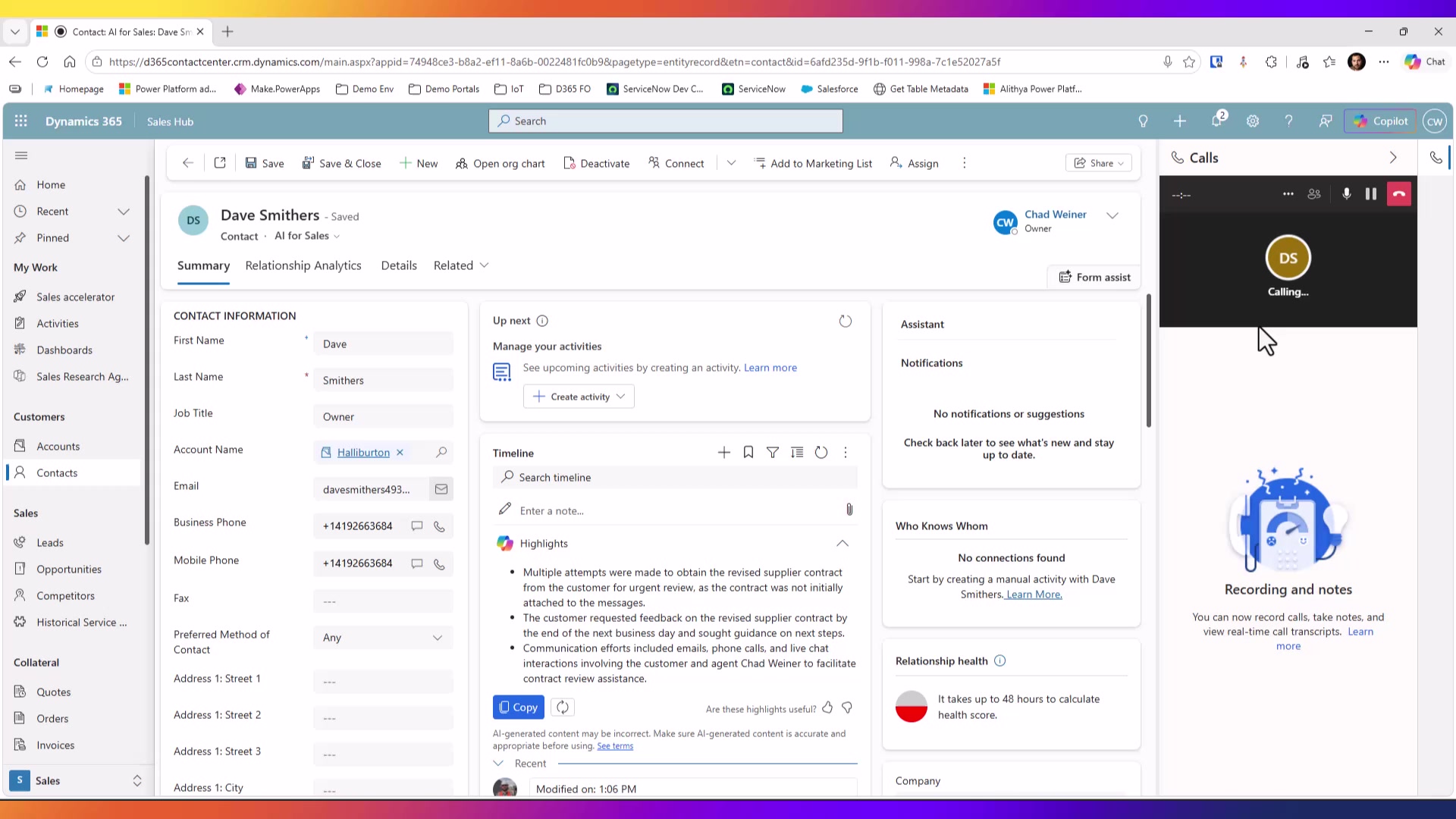
Microsoft’s setup documentation lists prerequisites such as a Teams license, a configured phone system, PSTN connectivity, an assigned phone number, and the appropriate security permissions. The dialer can also be enabled for selected security roles and apps. Configure the Microsoft Teams dialer
Review the call after it ends
The call record in the demo includes a call summary view with notes, action items, transcript search, sentiment, and conversation markers. A seller can use the transcript to find a specific point in the conversation, such as a question about pricing or a commitment to send a follow-up.
The action-item experience is useful because it connects a spoken commitment to follow-up work. If the customer asks for a proposal or additional information, the seller can capture that as a task instead of relying on memory after the call.
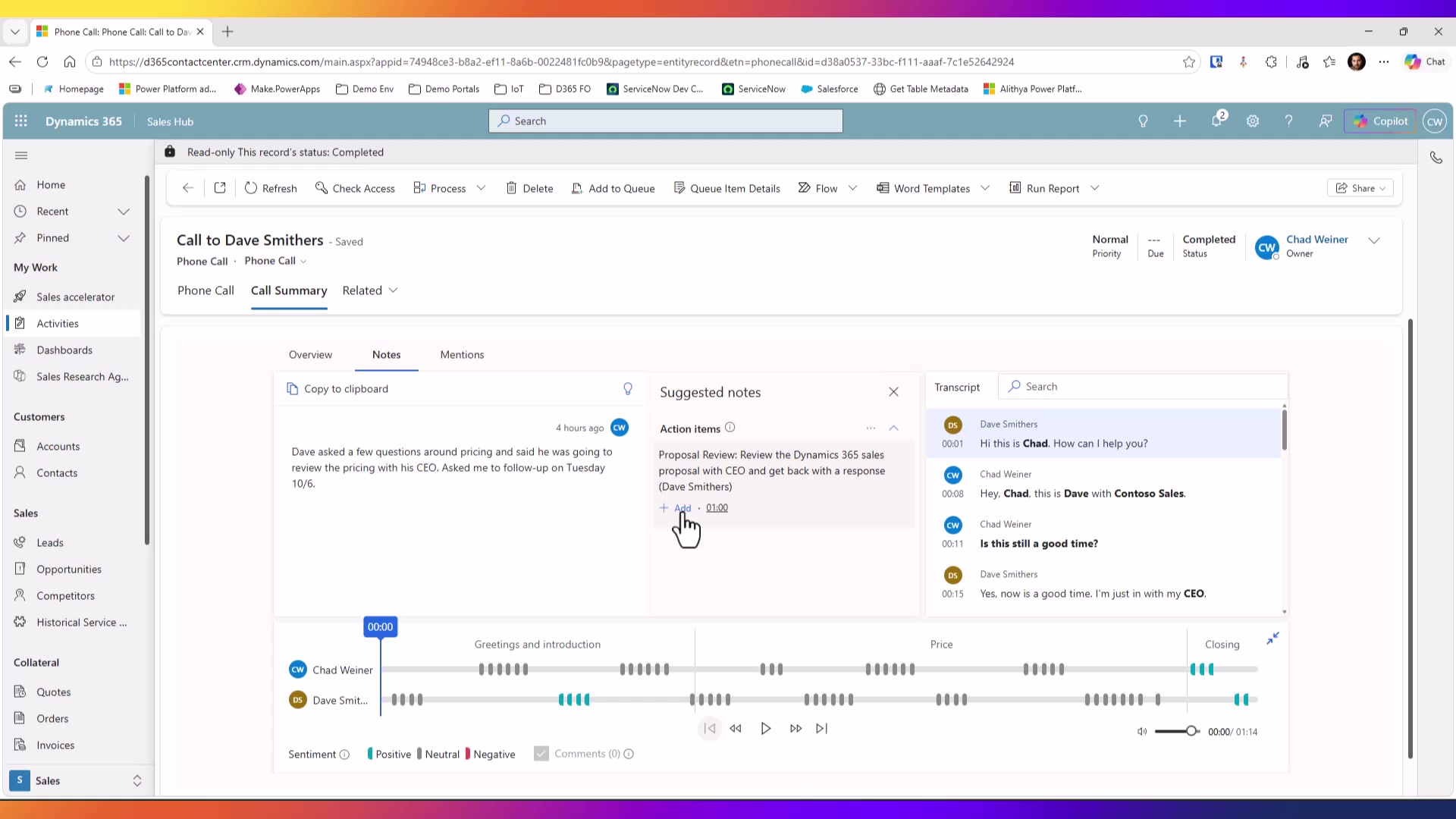
Microsoft describes the call summary page as a place to review action items, relevant keywords, the transcript, and the playback timeline. It can help sellers revisit a conversation and help managers review patterns across calls. View and understand the call summary
Use Conversation Intelligence to find patterns
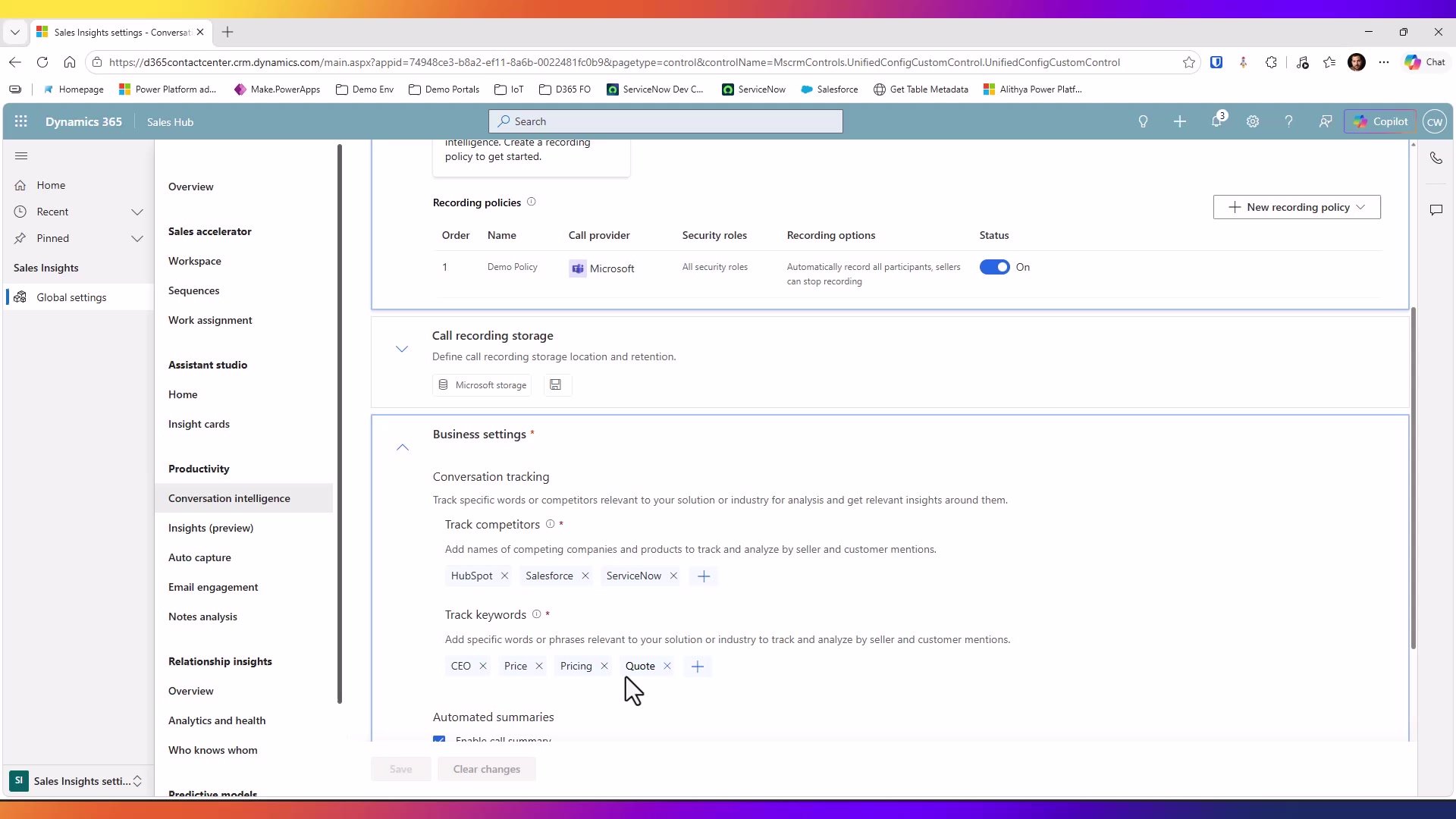
The demo also shows the Conversation Intelligence configuration area. Administrators can define recording policies, choose storage settings, identify competitors to track, add keywords, and enable automated call summaries.
Those settings determine the signals that managers and sellers can find later. For example, tracking competitor names, pricing terms, or specific sales questions can make it easier to review calls and coach sellers on the parts of the conversation that matter to the business.
Recording and analyzing customer calls also creates privacy and compliance responsibilities. Organizations should define how sellers and customers are notified, when consent is required, who can access recordings and transcripts, how long data is retained, and how the information can be used. Microsoft states that customers are responsible for complying with applicable laws when monitoring, recording, and storing communications. Coach sellers with Conversation Intelligence
Send and receive SMS from the sales record
The second half of the demo shows SMS from a Dynamics 365 Sales contact. The seller can open the text-message conversation, review previous messages, use a template, personalize the content, and send a new message without leaving the CRM record.
When the customer replies, the seller receives a notification and can continue the conversation. The messages remain associated with the lead or contact, which gives the sales team a shared history of the conversation. That matters when another seller needs to step in or when the original seller is unavailable.
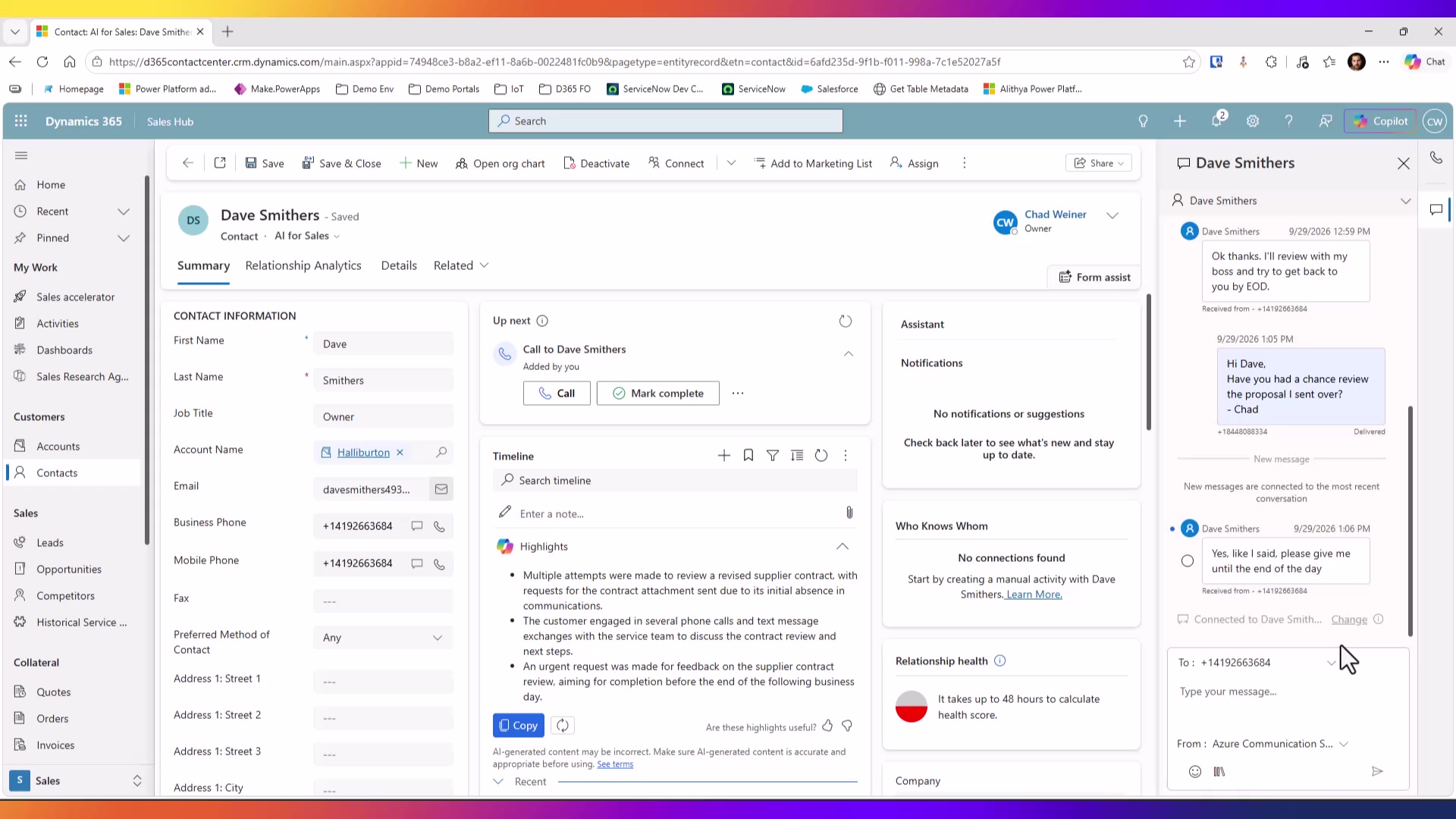
Dynamics 365 Sales supports templates for more consistent messages, and SMS can also be used as a step in a sequence for reminders or updates. The feature is supported in web browsers, and the available regions and permissions should be checked before rollout. Engage with customers through text messages
Choose and configure an SMS provider
The demo shows the SMS provider setup area and the provider wizard. In the environment shown, Azure Communication Services is already connected. The wizard also presents other supported provider options, including Infobip, LINK Mobility, Telesign, Twilio, and Vibes.
The setup requires more than selecting a provider. An administrator needs to enter the provider connection details, add phone numbers, and assign those numbers to the users or teams who will send messages. Delivery and incoming-message callbacks also need to be configured for the selected provider.
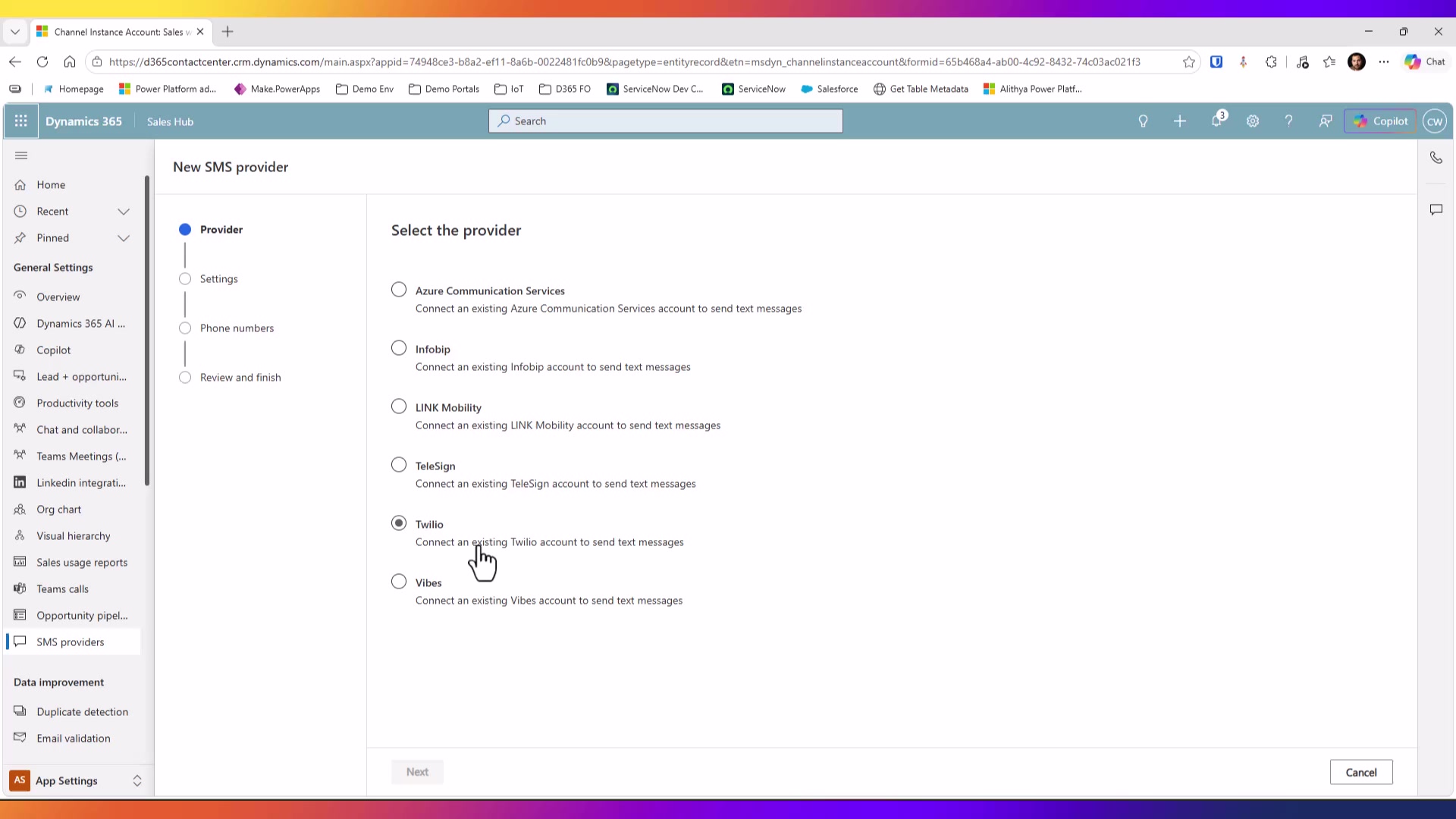
Never publish connection strings, API keys, auth tokens, callback values, or other provider credentials in screenshots. Configure an SMS provider
What this adds for sellers
The practical benefit of this setup is continuity. Calls, transcripts, tasks, notes, and text messages can stay connected to the sales record instead of becoming separate pieces of activity that a seller has to reconstruct later.
The configuration still needs to match the organization’s policies. Teams calling requires the right phone system and permissions. Conversation Intelligence requires decisions about recording, retention, access, and consent. SMS requires an approved provider, phone-number ownership, and rules for customer communication.
When those decisions are made up front, sellers can call and text from the place where they already manage accounts, leads, opportunities, and activities.
Watch the demo
The video walks through the seller experience first, then shows the Teams calling, Conversation Intelligence, and SMS provider settings used behind it.