
Watch the full walkthrough
The 55-minute demo covers the Customer Service workspace, email-to-case, Copilot assistance, Tier 1-to-Tier 2 escalation, voice support, Teams self-service, translation, and supervisor analytics. It uses sample data and demonstrates one configured scenario; your routing, knowledge, security, and channel setup will depend on your environment.
Video: Dynamics 365 Contact Center IT Help Desk Demo
One support operation across employee channels
An employee can start with an email, call the help desk, or ask for help in Teams. The support team still needs to understand the request, get it to someone who can work it, and keep the history when another person takes over.
This demo uses an internal IT help desk to show how Dynamics 365 Contact Center and Customer Service can connect those steps. It moves from email intake to case work, then shows voice support, a Teams self-service interaction, and supervisor analytics. The records and conversations are sample data, and the setup shown is a demo configuration.
Start with the agent’s workspace
The walkthrough opens in the Customer Service workspace. The agent can see assigned cases, their priority and status, and which queue they belong to. The same workspace also gives access to employee records, activity history, and asset information.
For example, the demo opens an employee record with prior cases and assigned equipment. Asset views can be filtered and visualized with Power BI, giving support staff another way to find relevant context without leaving the application.
Employee, device, and support history can help an agent work a request when that information is available and maintained.
Turn incoming email into a case
The first support channel is email. A message reaches the connected support mailbox, and the configured workflow creates a case in Dynamics 365. In the demo, an AI prompt reads the subject and message, then extracts details such as the issue, case type, priority, language, sentiment, and requested action. The case can then use those details in classification and routing.
Two sample messages illustrate the flow: a docking station issue and a Spanish-language SharePoint access problem. The generated case includes a summary of the reported problem and a suggested next step. The routing configuration sends the docking station request to the Tier 1 queue, where the available agent can accept it.
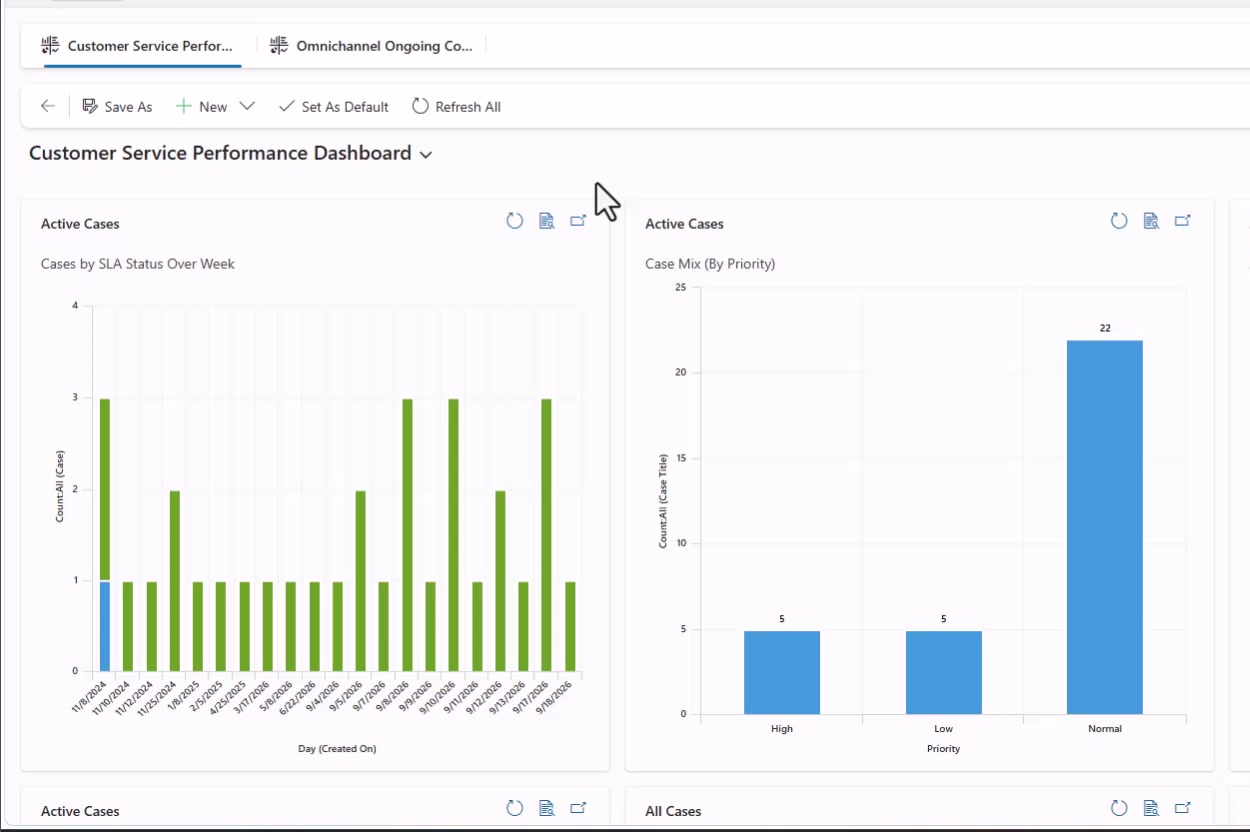
The dashboard shows cases by SLA status over time and case mix by priority.
Once the agent opens the case, its timeline includes the original email and its attachment. The case also shows an SLA timer and a configurable business process flow. The agent can relate the issue to an employee asset, review similar cases, associate a knowledge article, add notes, and collaborate through a Teams chat linked to the case.
Classification provides a useful starting point, routing selects the queue, and the case record gives the agent a place to continue the work.
Use Copilot as an assistant, with the agent reviewing the result
The case experience includes Copilot assistance grounded in the available support knowledge. In the docking station example, Copilot summarizes the case, suggests troubleshooting steps, answers follow-up questions, and drafts an email response using the case and knowledge context. The agent can edit the response before sending it.
The agent should check a suggested reply against the employee’s situation before sending it. Generated summaries and notes need the same review.
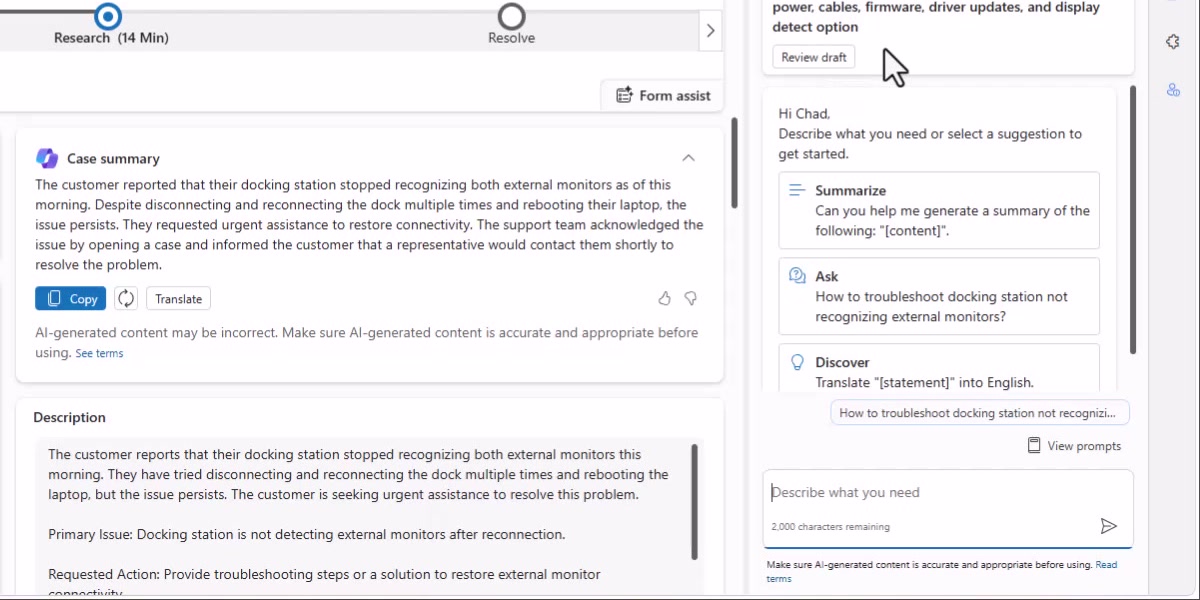
Copilot surfaces a case summary and troubleshooting suggestions in the agent’s workspace.
The Spanish-language SharePoint request shows another part of the flow. The demo displays the message details in English for the agent, and the agent can translate a response back into Spanish. The support representative can keep the conversation and case work in the same workspace.
Escalate a case without losing the work so far
If Tier 1 cannot resolve the docking station issue, the agent can mark the case for escalation and route it to Tier 2. The next agent sees the case timeline and can review the earlier exchanges and troubleshooting before continuing.
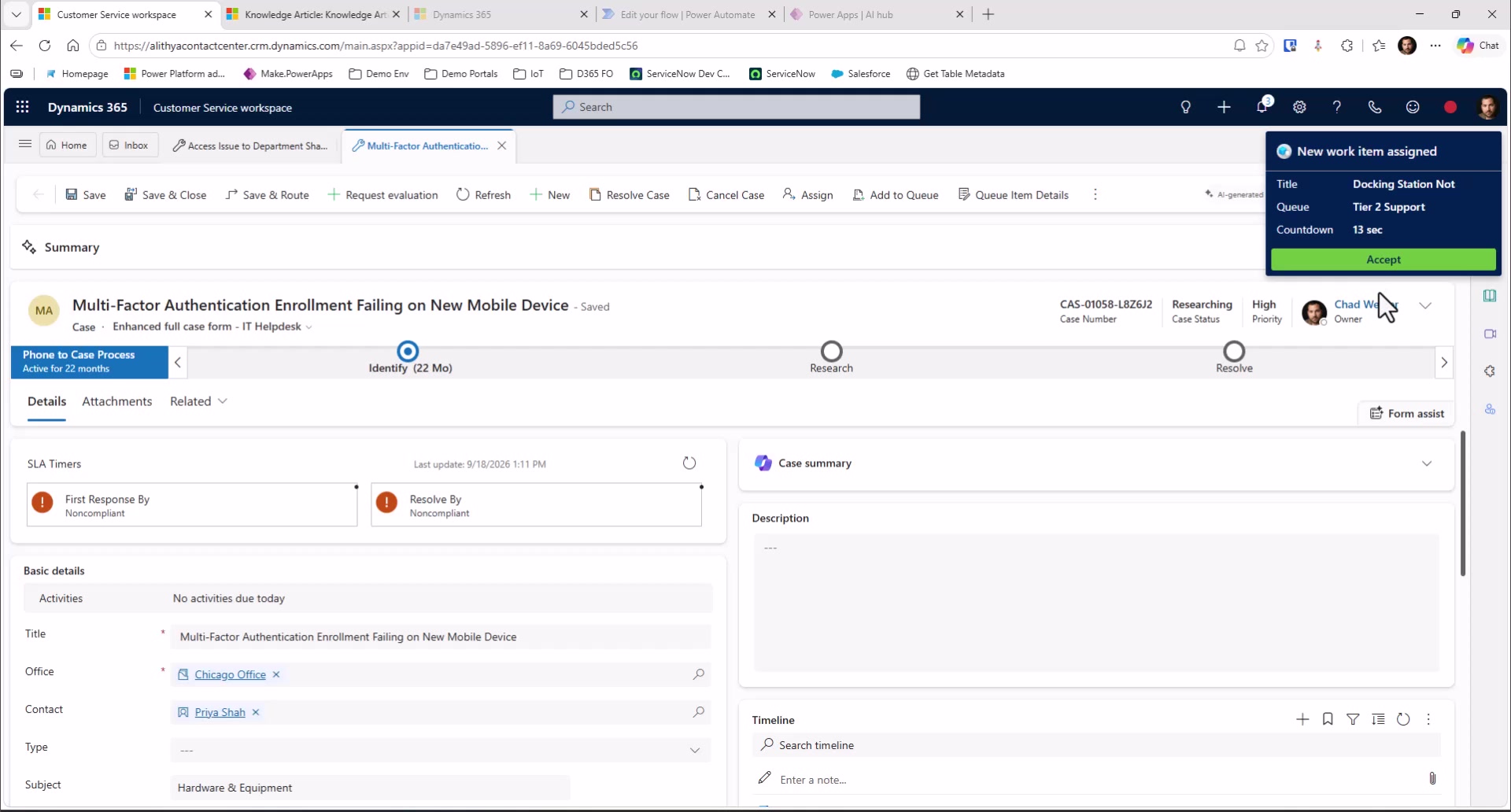
In the demo, the Tier 2 agent resolves the case after updating the drivers. When adapting this pattern, define what triggers an escalation and what context the receiving queue needs so the next agent can continue the work instead of restarting the conversation.
Add voice support and conversation context
The voice portion starts with a caller describing a sign-in problem after getting a new phone and not receiving multi-factor authentication notifications. A voice bot asks why the employee is calling, summarizes the issue, and transfers the caller to an available agent.
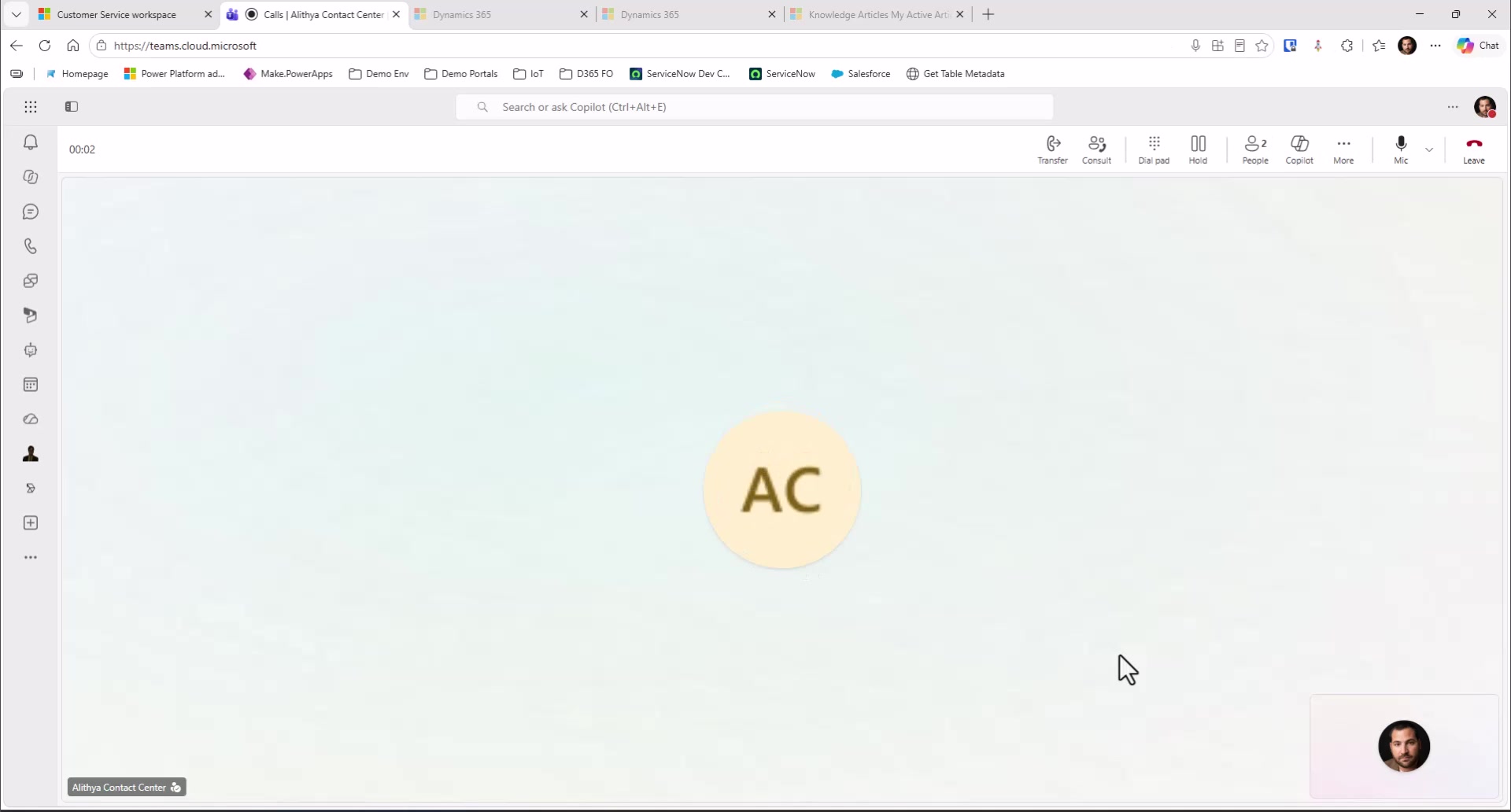
When the agent accepts the call, the conversation context is already visible. The demo also shows a case being created from the interaction, Copilot retrieving troubleshooting guidance from the support knowledge, and the agent walking the caller through the steps. After the conversation, the transcript and call details remain available. Copilot updates the case with the issue, troubleshooting performed, and outcome; a quality evaluation can also be run against a configured rubric.
The voice workstream settings shown later in the video include options for recording, transcription, languages, voice prompts, queue behavior, operating hours, and overflow handling. Those settings shape how a call enters the support operation and what happens when agents are unavailable.
Let employees start in Teams self-service
The Teams example starts with an employee asking for help with Outlook. A Copilot Studio agent searches connected support content and provides troubleshooting steps. The employee can ask for a live agent instead, which escalates the conversation into Dynamics 365.
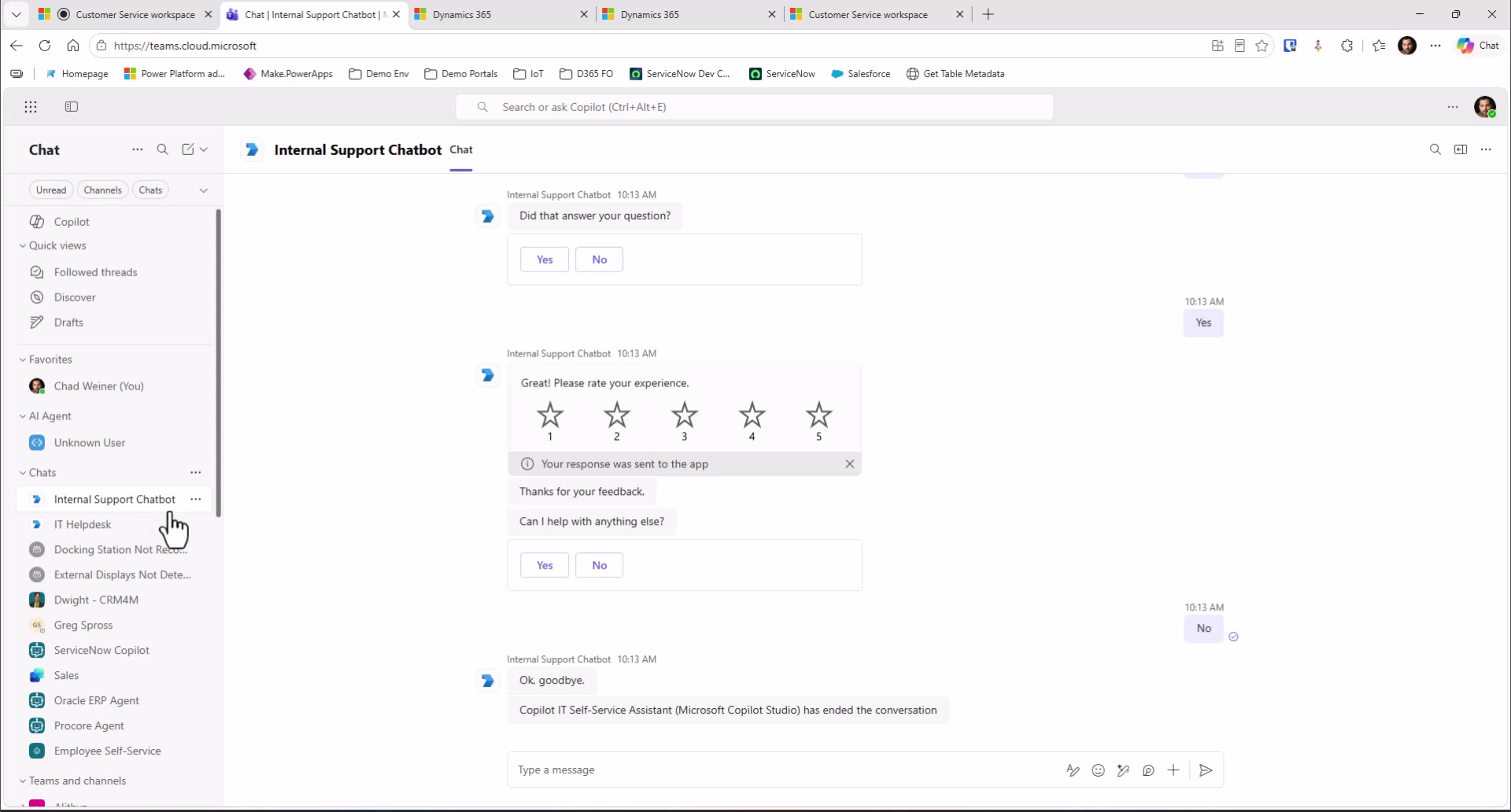
Once the agent joins, the transcript and conversation context are available in the workspace. The demo shows an intent agent suggesting questions as the issue is clarified, including when the conversation shifts from VPN connectivity to a laptop charging problem. Translation is also shown: the employee writes in Spanish, the agent sees an English translation, and the reply is translated back.
The Teams flow gives employees a self-service entry point and a route to a person when the bot does not resolve the request or live help is needed.
Give supervisors a view of active work
The final section looks at ongoing conversations and supervisor analytics. The dashboards show information such as active conversations, channel, queue, wait time, sentiment, and agent availability. Supervisors can filter the view and open a conversation to monitor it or support the agent, depending on the configured controls.
The demo also shows queue and agent-level metrics and a real-time wallboard view. These views are useful only when teams have agreed on what to monitor and how they will respond. A dashboard can show where work is waiting; operating practices determine what happens next.
What to decide before building this pattern
Each channel requires its own decisions, even when it feeds the same support operation. Teams need to define queues, skills, languages, assignment methods, operating hours, overflow paths, and escalation rules. They also need to maintain the knowledge that Copilot Studio and agent-side Copilot use, and decide which actions can be automated versus which need an agent’s approval.
For an internal IT help desk, the case should also connect to the information agents need, such as employee identity, device or asset records, and previous support history. Access to that information should follow the organization’s security model.
Start with one request type and trace it from intake through resolution. Check whether the classification is useful, whether the work reaches the right queue, and whether the next agent has enough context. Then expand to other channels and scenarios based on what the support team learns.